


Gmail read receipts let you know when someone opens your email. They’re useful for follow-ups, approvals, and important messages where timing matters.
However, Gmail read receipts aren’t available to everyone. The native read receipt feature only works with Google Workspace accounts (used by businesses, schools, and organizations).
If you’re using a personal Gmail account, you won’t see this option in your settings.
The good news is that you still have two ways to send read receipts in Gmail:
1. Use Google Workspace to request read receipts directly from Gmail (paid)
2. Use an open tracking tool like MailTracker to track opens, re-opens, and link clicks in personal Gmail accounts
In this guide, I’ll walk through both methods step by step, so you can choose the one that works best for your setup.
Method 1: Send Read Receipts in Gmail Using Google Workspace
Native Gmail read receipts are only available for Google Workspace accounts, which are paid plans designed for businesses and organizations. (👉 Here's a guide on how to create a business email in Gmail.)
To enable this feature, you must have admin access to your organization’s Google Admin Console.
Google Workspace plans start at $6 per user per month, and read receipts can be enabled depending on your admin settings and plan configuration.
Once read receipts are enabled by an admin, users can request them directly from the Gmail compose window when sending an email.
Steps to Enable Gmail Read Receipts (Google Workspace)
1. Log in to your Google Workspace account
Open Gmail and sign in using your Google Workspace email address.
2. Access the Google Admin Console
Click the grid icon in the top-right corner of Gmail and select Admin, or go directly to the Google Admin Console.
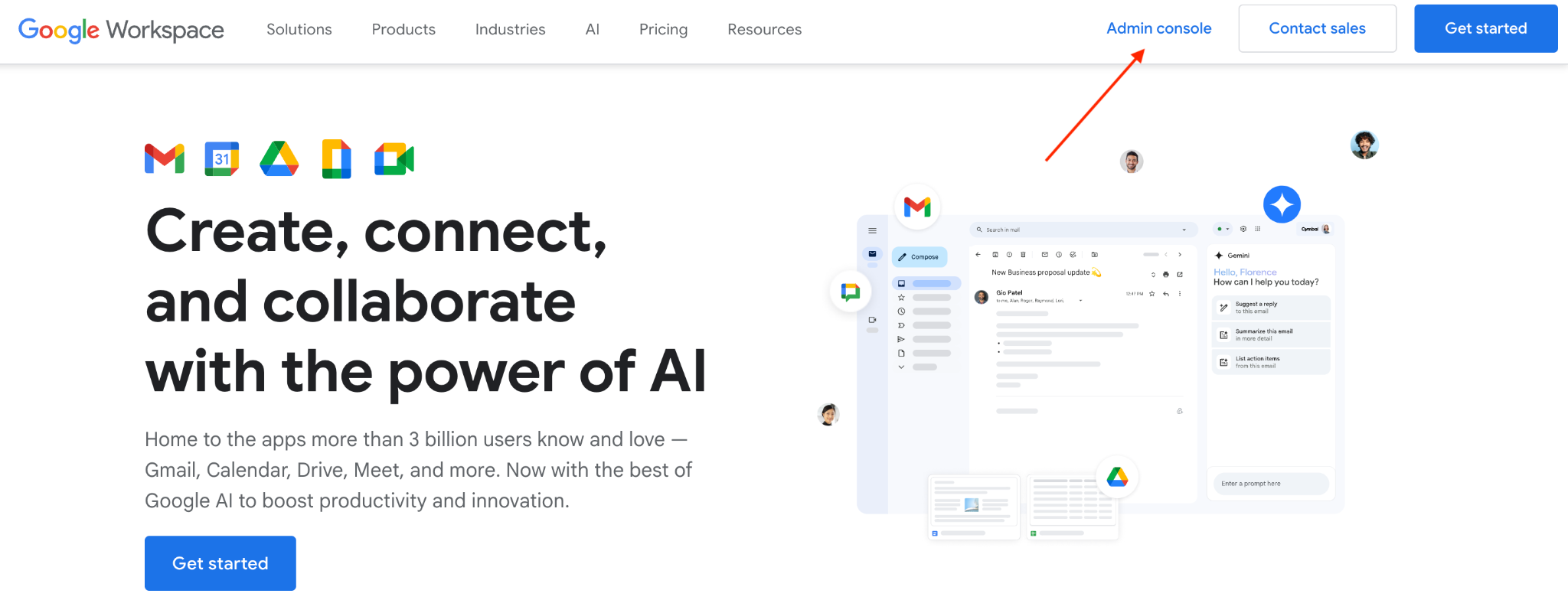
3. Open Gmail settings in the Admin Console
In the Admin Console, go to Apps → Google Workspace → Gmail.
4. Enable email read receipts
Scroll to User settings and find the Email read receipts option and then select:
“Allow email read receipts to be sent to all addresses in my company, as well as the following email addresses.”
If needed, you can also allow read receipts for external recipients.
5. Save your changes
Click Save to apply the settings across your organization.
6. Request a read receipt when sending an email
Open Gmail and compose a new email. Click the three-dot menu in the bottom-right corner of the compose window, then select Request read receipt. Send your email as usual.
Note: In most cases, the recipient will be asked to approve sending the read receipt. If they decline, you won’t receive confirmation.
Method 2: Send Gmail Read Receipts Using MailTracker (No Workspace Needed)
MailTracker is a free email tracking tool for Gmail that works with personal Gmail accounts.
It lets you track email opens, re-opens, and link clicks, and it also includes a read receipt feature (without requiring Google Workspace or admin access).
MailTracker runs as a Chrome extension and works directly inside Gmail. You can start for free and upgrade later if you need unlimited tracking. Here are the steps to send read receipts with MailTracker:
1. Install MailTracker for Chrome
Add the MailTracker extension to your browser and connect it to your Gmail account. Once installed, it works automatically inside Gmail.
2. Open the email you received in Gmail
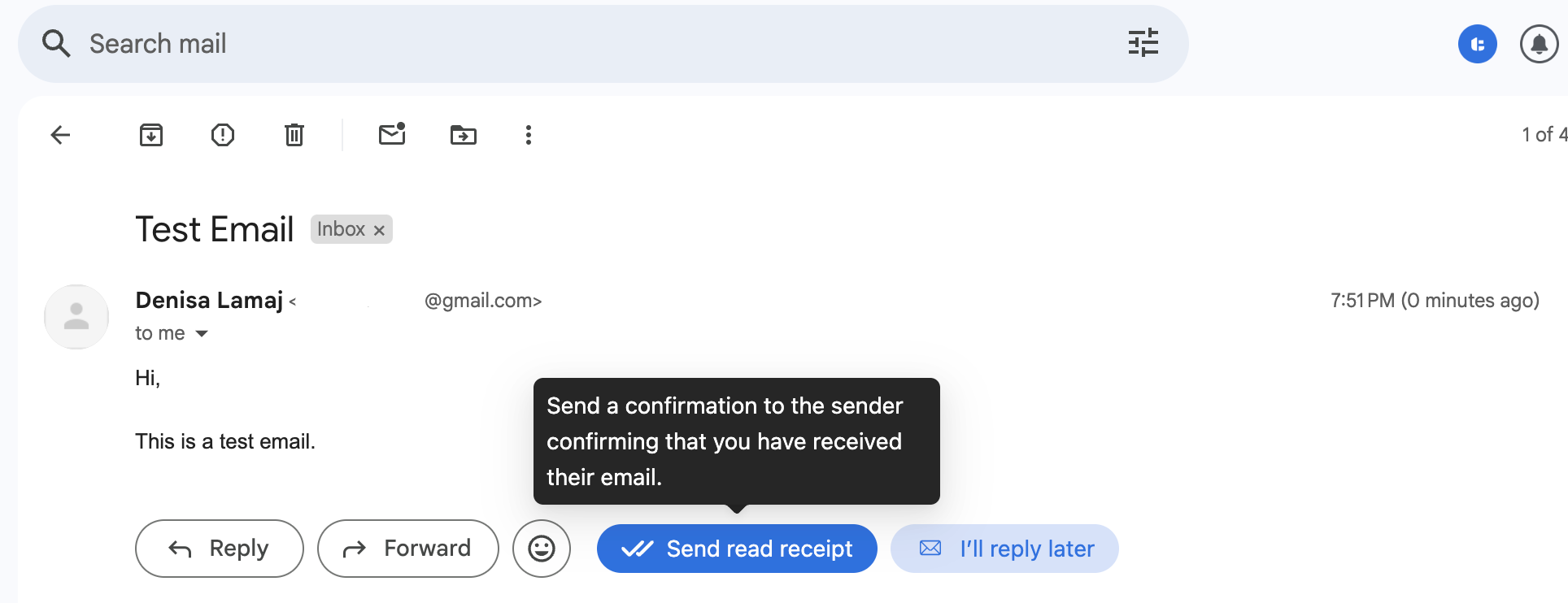
When you open an email, you’ll see a “Send read receipt” button at the bottom of the message.
The image below shows where the “Send read receipt” button appears when you open an email in Gmail.
3. Click “Send read receipt”
Click the button to confirm that you’ve read the email. A small tooltip explains that a confirmation will be sent to the sender.
4. The sender receives a read receipt notification
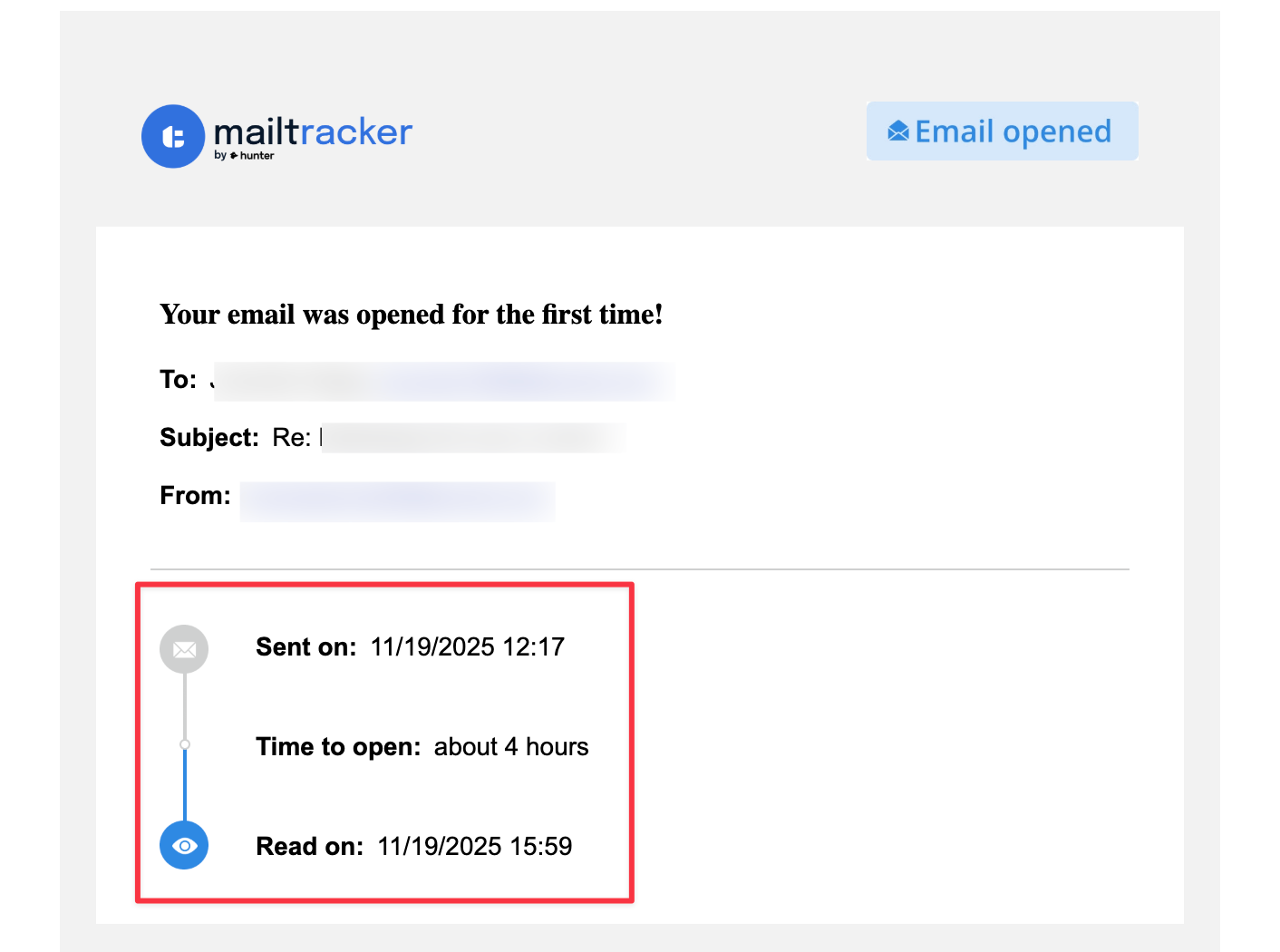
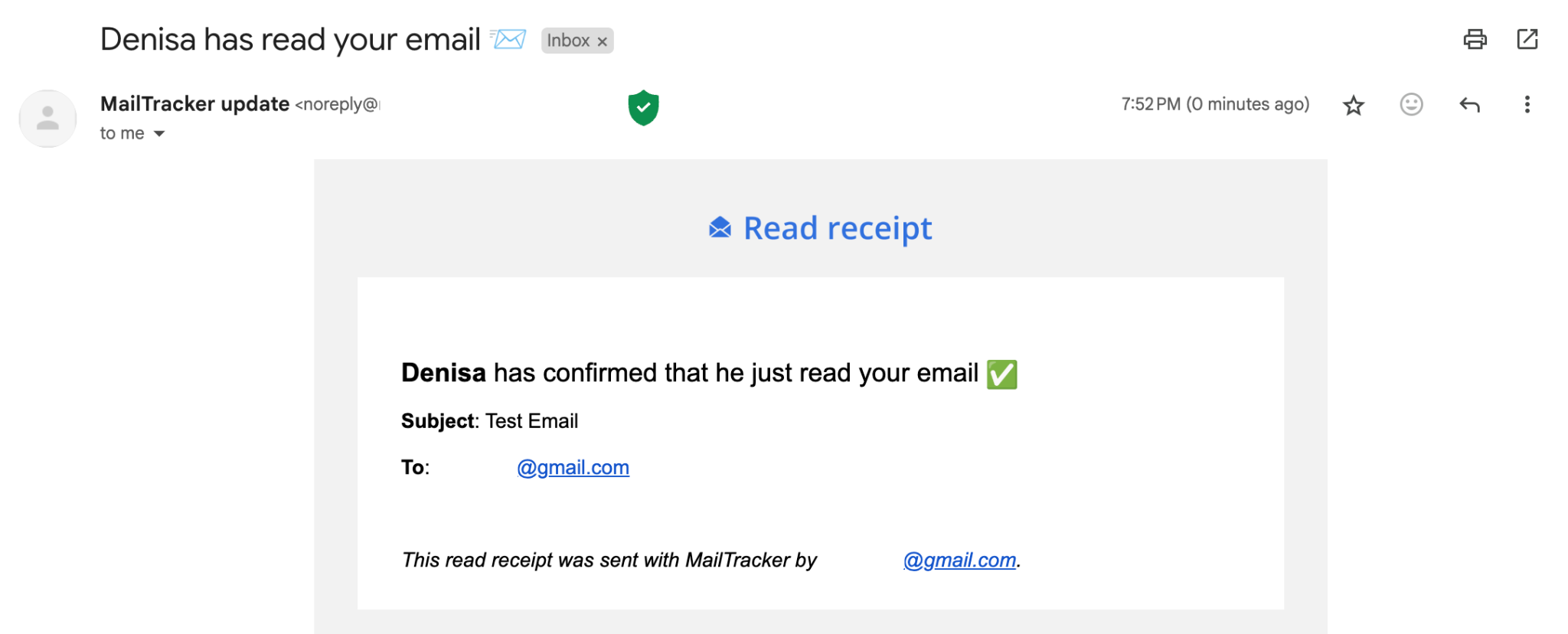
The sender gets an email notification confirming that their message was read. The receipt includes the email subject line and the time the email was opened.
The image below shows the read receipt email the sender receives after you confirm.
That’s it. No admin setup, no Workspace account, and no extra steps.
MailTracker makes this process simple and transparent, and you can use it for free to track your emails in Gmail.
Send Gmail Read Receipts with MailTracker
If you’re using a personal Gmail account, MailTracker is the easiest way to send and receive read receipts without switching to Google Workspace.
With MailTracker, you can:
- See when your emails are opened or re-opened
- Send read receipts directly from Gmail
- Track link clicks inside your emails
- Get real-time notifications without manual setup
You can start with the free plan, which is enough for most individual users. If you send a higher volume of emails (more than 20/month) or need unlimited tracking, you can upgrade anytime.
FAQs About Gmail Read Receipts
Do recipients know when a Gmail read receipt is requested?
Yes. When you request a read receipt in Gmail, the recipient is usually notified and may be asked to approve sending it. If they decline, you won’t receive confirmation.
Are Gmail read receipts accurate?
Gmail read receipts confirm that an email was opened, but they don’t guarantee that the message was read carefully. In some cases, previews or email client behavior may affect how receipts are triggered.
Are read receipts and email tracking safe to use?
Yes, when used responsibly. Native Gmail read receipts require recipient consent, and tools like MailTracker clearly notify users when tracking is enabled. It’s best to use read receipts for important or professional emails and avoid overusing them to maintain trust.

