


Most people don’t reply to your first email. Many responses only happen after a short and polite follow-up.
The good news is that Gemini makes these follow-ups much easier to write directly inside Gmail, without overthinking your wording.
In this guide, you’ll learn how to use Gemini to draft, refine, and personalize follow-up emails in just a few clicks.
You’ll also see how MailTracker shows you who actually opened your message, so you know exactly who to follow up with and when.
If you are interested in who writes better emails, we have a guide with real examples: ChatGPT vs Gemini: Which Writes Better Emails?
1. Use MailTracker to Identify Who Needs a Follow-Up
Before writing your follow-up, you first need to know who is actually engaging with your email. MailTracker shows this directly inside Gmail, so you can focus on people who are most likely to reply.
Here’s what to look for:
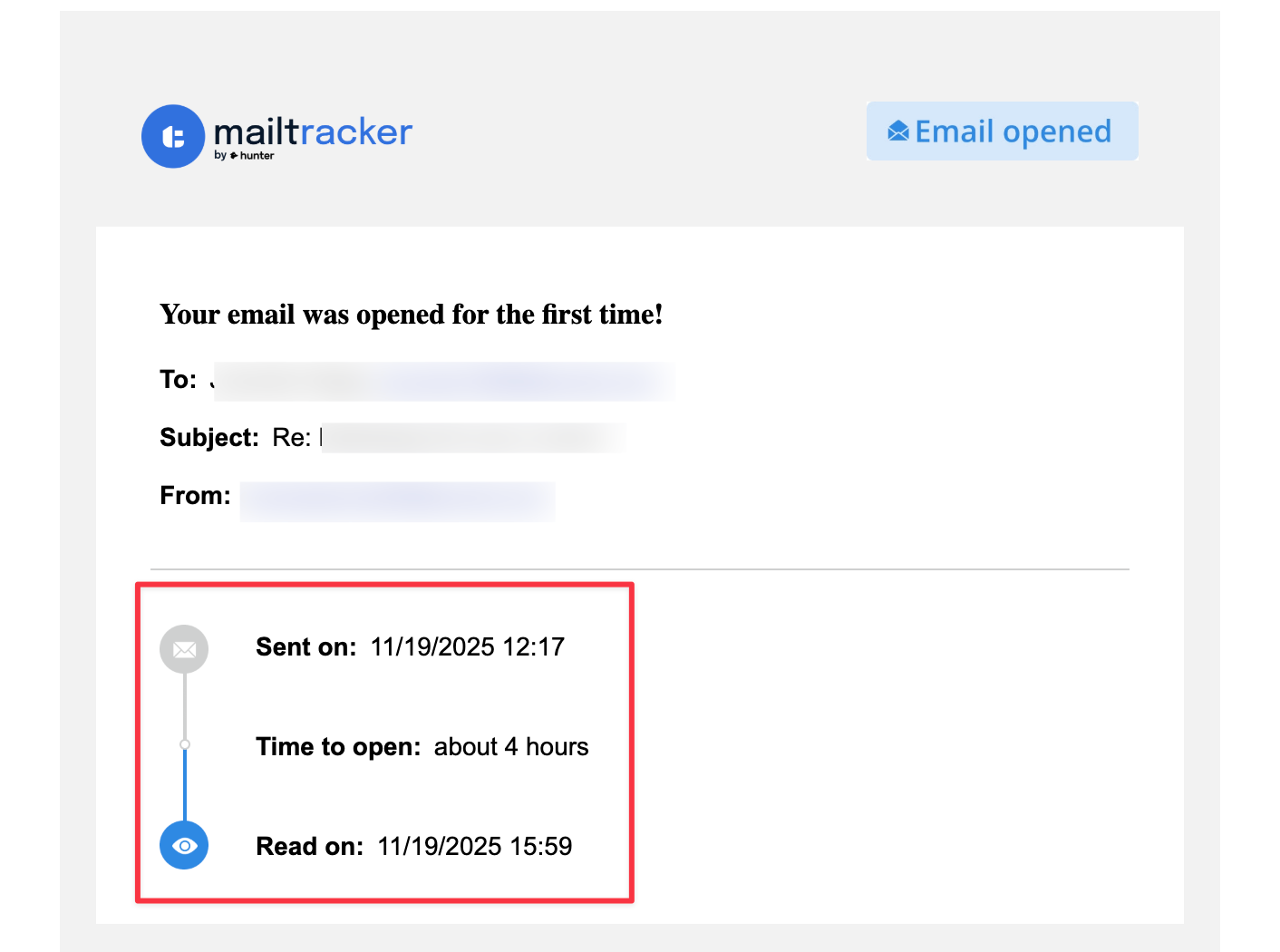
1. See who opened your email once
In this example, you can see when the email was sent, when it was first opened, and how long it took the recipient to read it.
If someone opened your email once, they probably saw it but didn’t feel urgency yet—a short reminder usually works well.
2. See who opened it multiple times
Here, MailTracker shows the email was reopened several times across different days.
This usually means a strong interest. The recipient is paying attention but hasn’t replied yet, so this is the best moment to send a friendly follow-up.

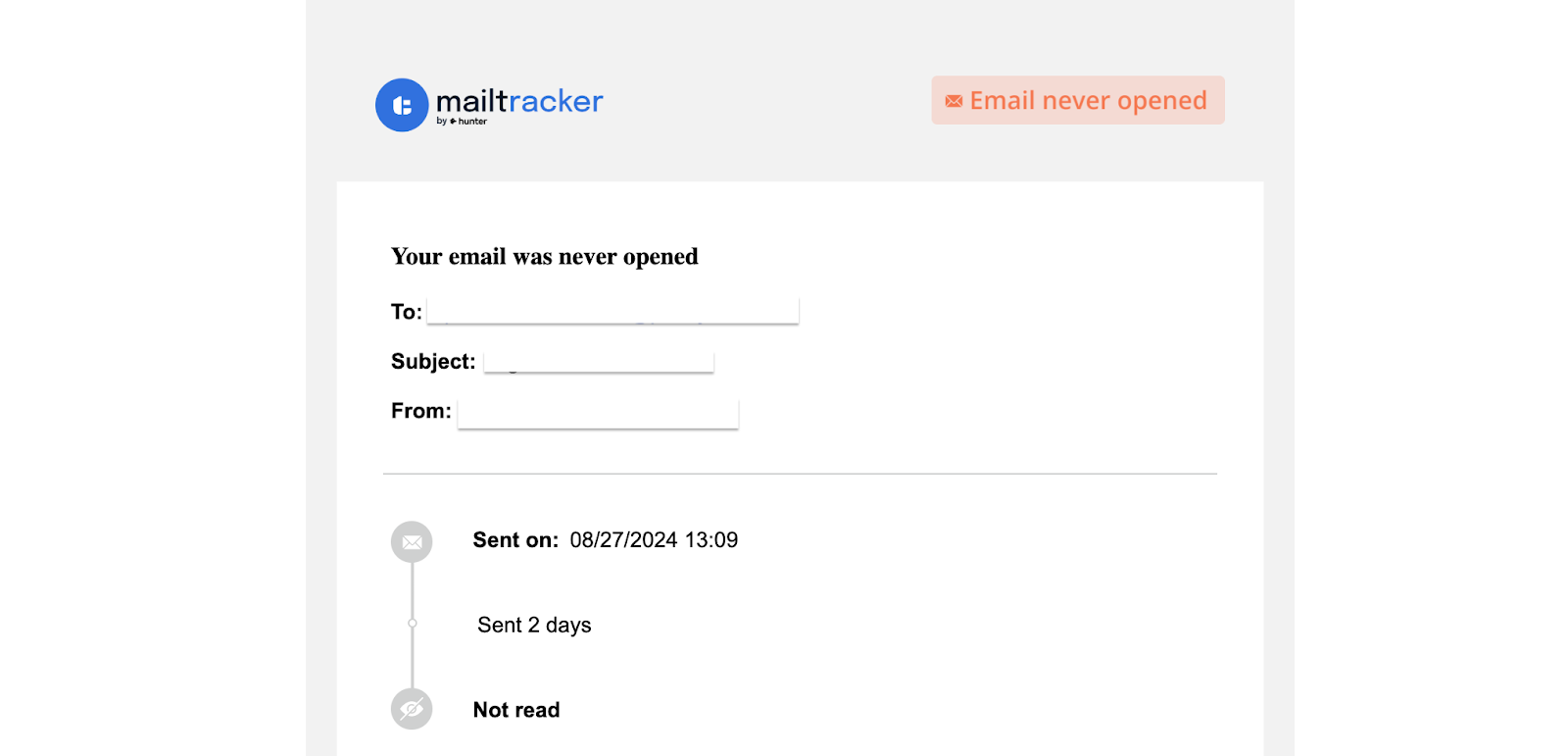
3. See who hasn’t opened your email
If your email shows as “never opened,” a follow-up may not help immediately; you might need a clearer subject line, or you can try again later.
You can also see who clicked the links inside your email. This is one of the strongest signals of interest, because it means the recipient didn’t just open your message; they actively engaged with it.
2. Check Gmail’s Suggested Reply for a Quick Follow-Up
When you open the email thread you want to follow up on, Gmail (powered by Gemini) may automatically show a suggested reply, like in the screenshot below.
This is a quick response Gemini generates based on the message you received.
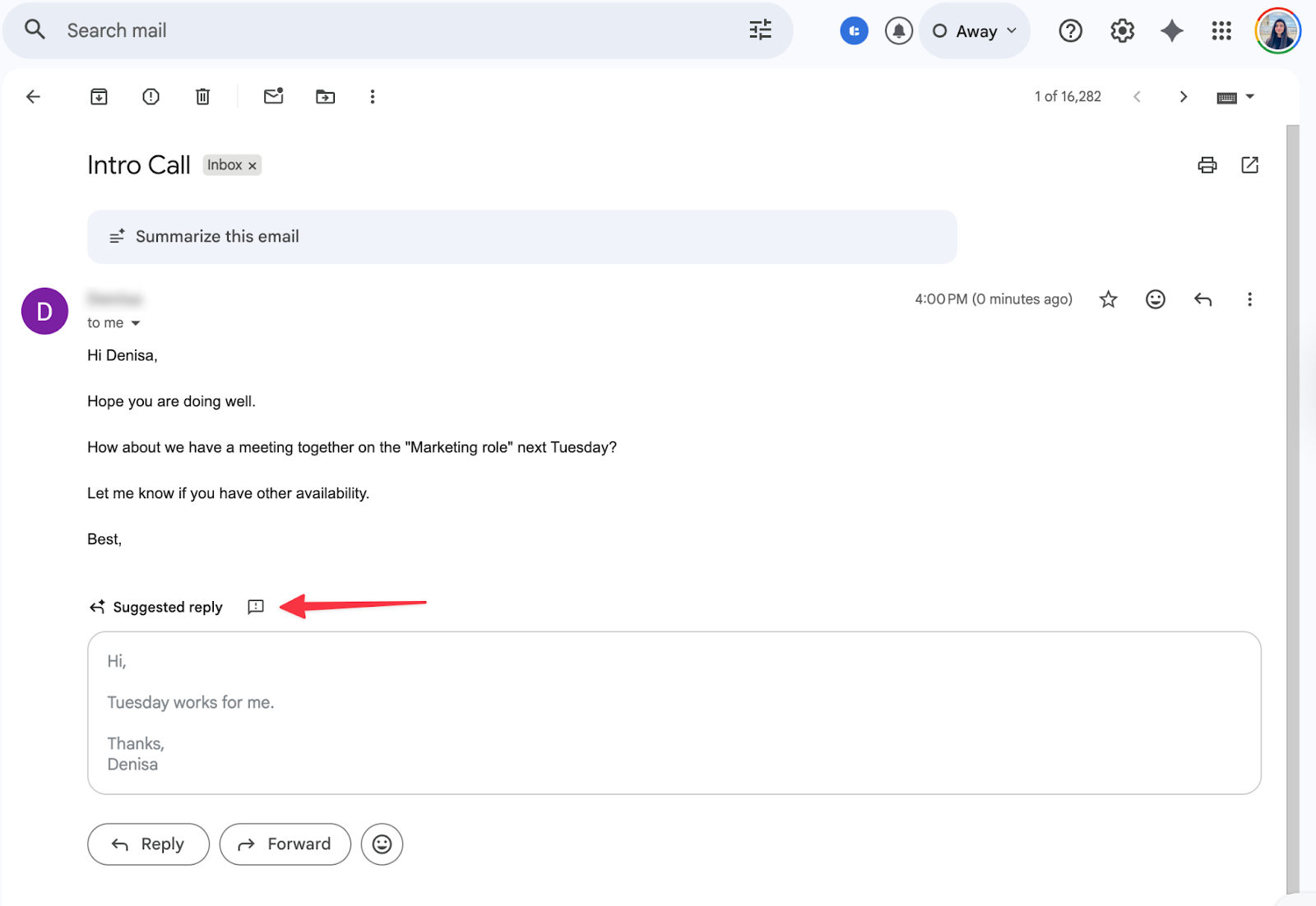
In the example, you can see a short reply suggesting a meeting confirmation. If this matches what you want to say, you can send it as is. It’s the fastest way to follow up.
If you need something different, you have two options:
- Edit the suggested reply manually
- Click “Help me write” to ask Gemini for a new follow-up message that better fits your tone or situation
This gives you flexibility: you can use the quick suggestion or generate a more personalized reply with Gemini (all inside the same email window).
3. Use Gemini Prompts to Write a Short Follow-Up
Most follow-up emails work best when they’re short and polite.
In the example below, you can see another way to use Gemini: clicking the Gemini icon in the top-right corner to open the panel and type a specific prompt.
Once you open Gemini, you can tell it exactly what kind of follow-up you need. In the example, the Gemini prompt asks for a short reminder about a previous email from last Thursday.
Gemini then generates a complete draft that you can insert into your message. Here is how to do it:
- Click the Gemini icon at the top of Gmail
- Type a short prompt describing the follow-up you want
- Insert the generated reply into your email
- Edit names or specific details before sending
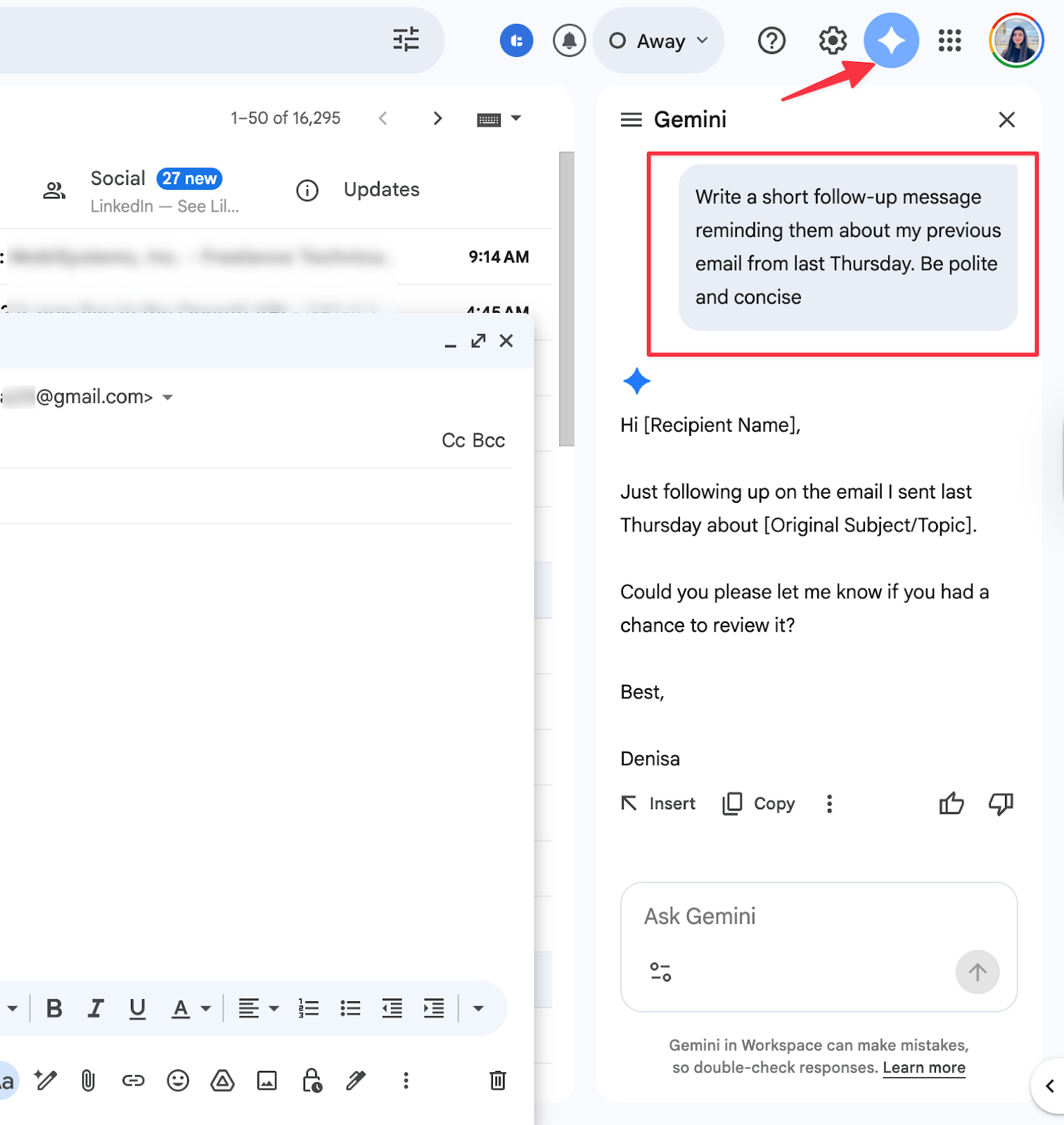
This lets you create a clear, polite follow-up in seconds, without needing to rewrite sentences or think too much about wording.
4. Personalize Your Follow-Up Draft with Gemini Rewrite Tools
If you prefer to write your follow-up yourself, Gemini can still help you make it clearer, shorter, or more polished.
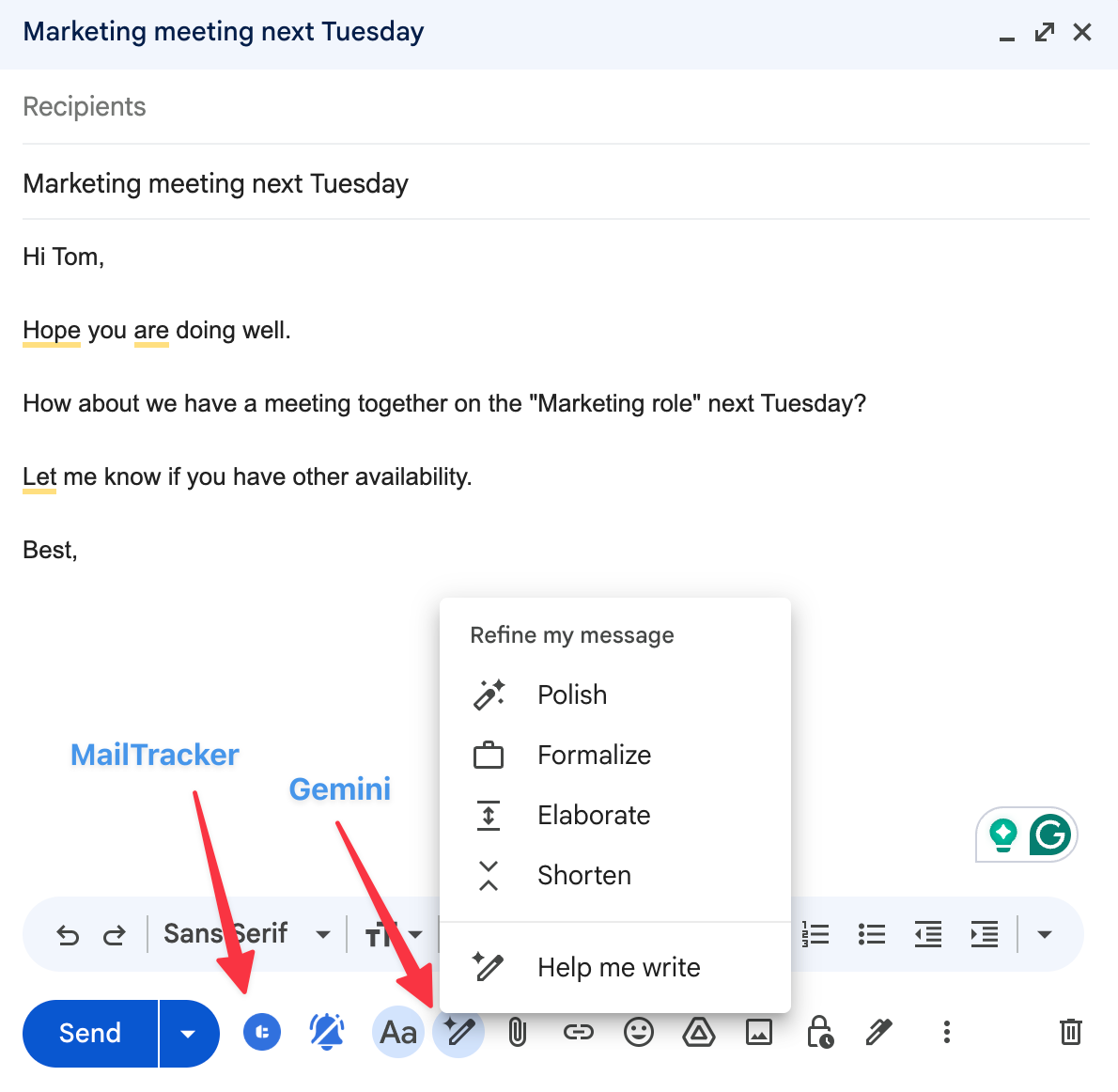
When you type your message in Gmail, you’ll see Gemini’s rewrite options appear below the email, as shown in the screenshot.
From here, you can choose how you want Gemini to refine your text:
- Polish → make the message smoother and more professional
- Formalize → adjust the tone to sound more formal
- Elaborate → add more context or detail
- Shorten → make the message more concise
This is helpful when you already know what you want to say but want the email to sound cleaner or more natural. How to use it:
- Write your follow-up in the email draft
- Click one of Gemini’s rewrite options
- Review the improved version
- Keep the parts that match your style
This gives your follow-up a personal touch, while still benefiting from Gemini’s clarity and tone adjustments.
5. Adjust Your Follow-Up Tone Based on MailTracker Engagement
MailTracker shows you how engaged someone is with your email, and this helps you decide how to follow up. Gemini can then write a message that matches their level of interest.
There are two common situations:
Warm leads (opened multiple times or clicked links)
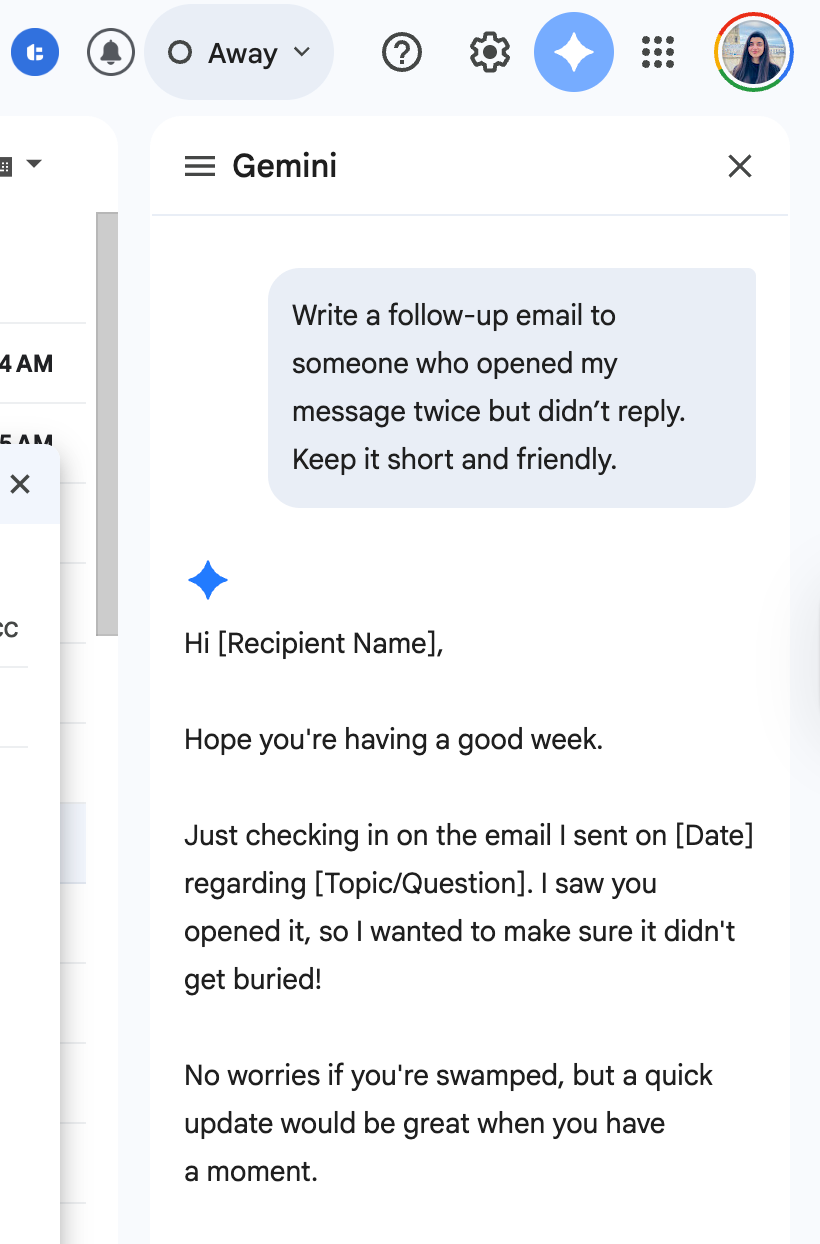
If someone opened your email 2–3 times or clicked a link, they’re likely interested. This is the moment to send a short, clear follow-up. How to use Gemini here:
- Note the engagement in MailTracker
- Tell Gemini who you're following up with and why
- Insert and personalize the draft
Cold leads (opened once or not at all)
If someone opened the email once or never opened it, your follow-up should be gentle and helpful. How to use Gemini here:
- Paste your draft in Gmail
- Ask Gemini to make the tone softer or more friendly
- Send it as a light check-in

