


Writing emails can take more time than we expect. You have to explain things clearly, choose the right tone, and often rewrite sentences so they sound professional.
Gemini makes this easier. It’s built directly into Gmail and helps you draft emails faster, rewrite your email text, and respond without overthinking every word.
In this guide, we’ll walk through how to use Gemini step-by-step for real email tasks. You’ll learn how to:
- Draft a brand new email with Gemini
- Rewrite and improve rough email drafts
- Summarize long email threads
- Reply faster with suggested responses
- Use MailTracker + Gemini together for smarter follow-ups
Each step includes practical examples and editable prompts you can use right away.
With the examples added throughout the guide, you’ll be able to follow along easily inside your own Gmail account.
Who Can Use Gemini in Gmail? (Requirements You Need)
Gemini works inside Gmail, but not every account has access to it. To use Gemini directly when composing or replying to emails, you need one of the following:
- A Google Workspace business account with Gemini enabled
- or a paid Gemini plan for personal Gmail (depending on your location)
Google is rolling out Gemini features gradually, so it’s normal if some users see more options than others.
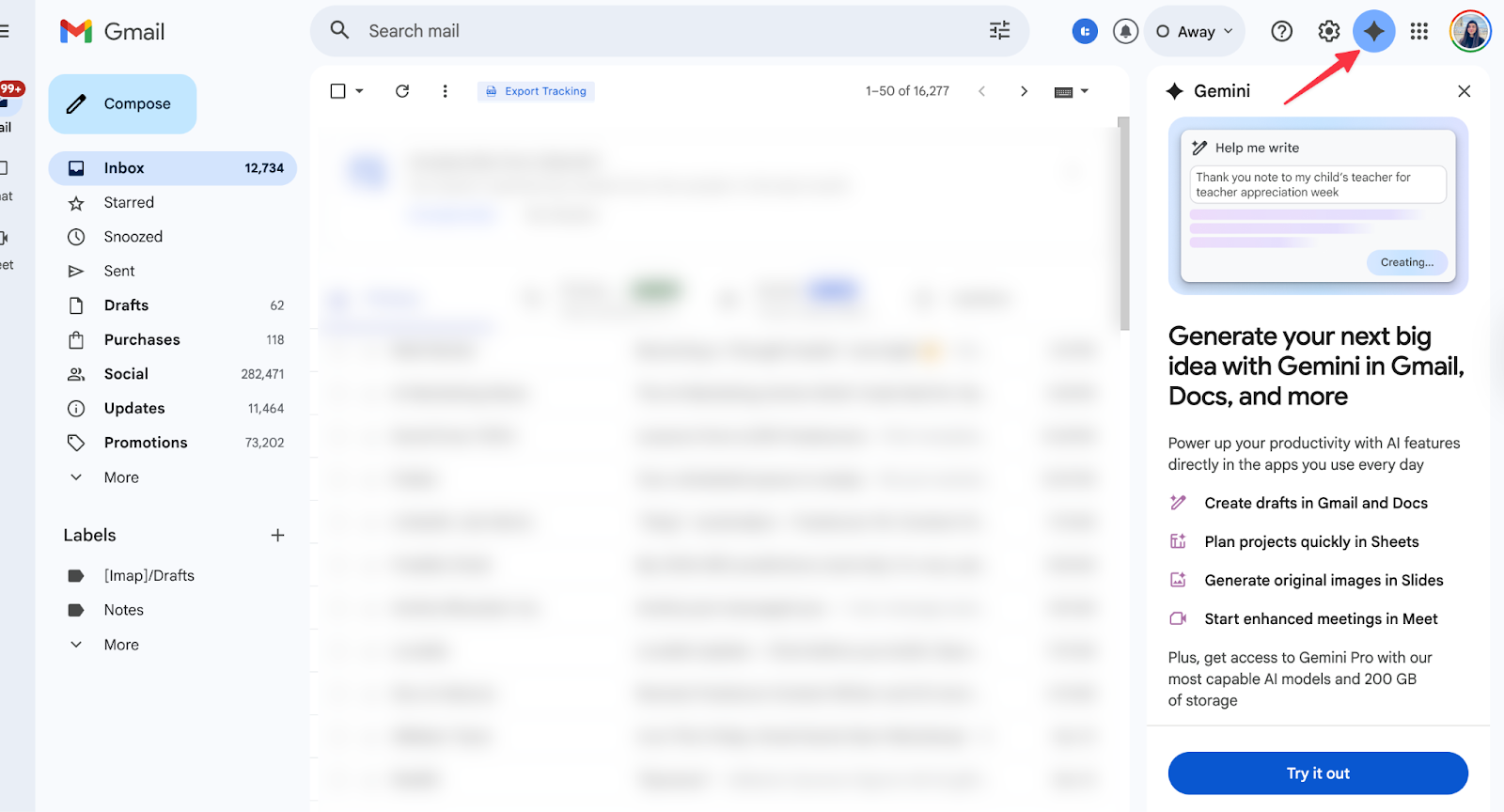
Below, you can see how Gemini appears inside Gmail: the Gemini icon in the top-right corner opens the panel where you can generate or rewrite email content.
If you’re using a personal Gmail account, you’ll need to purchase one of Google’s AI plans to unlock Gemini in Gmail.
The pricing below shows the available options. Even the basic plan is enough to start using Gemini for email drafting and rewriting.

Step 1: Make Sure you activate Gemini in Gmail
Before you start using Gemini to write emails, you should confirm that it’s active in your Gmail account.
When Gemini is enabled, Gmail may ask you to turn on smart features.
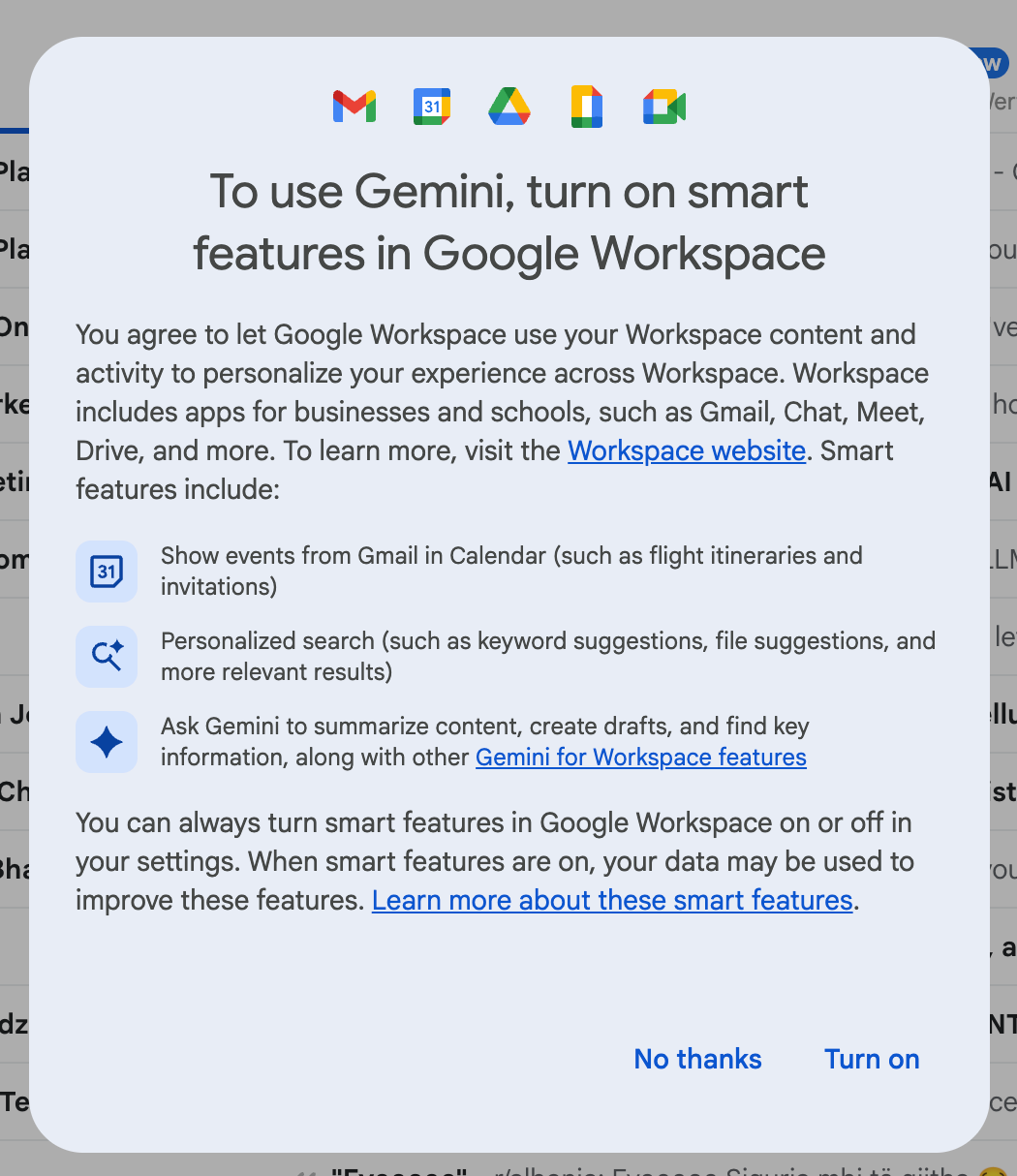
If this prompt doesn’t appear automatically, you can enable the setting yourself by following a quick check inside Gmail.
1. Open Gmail
2. Click the gear icon and select See all settings
3. Go to General
4. Make sure Smart Features & Personalization is turned ON
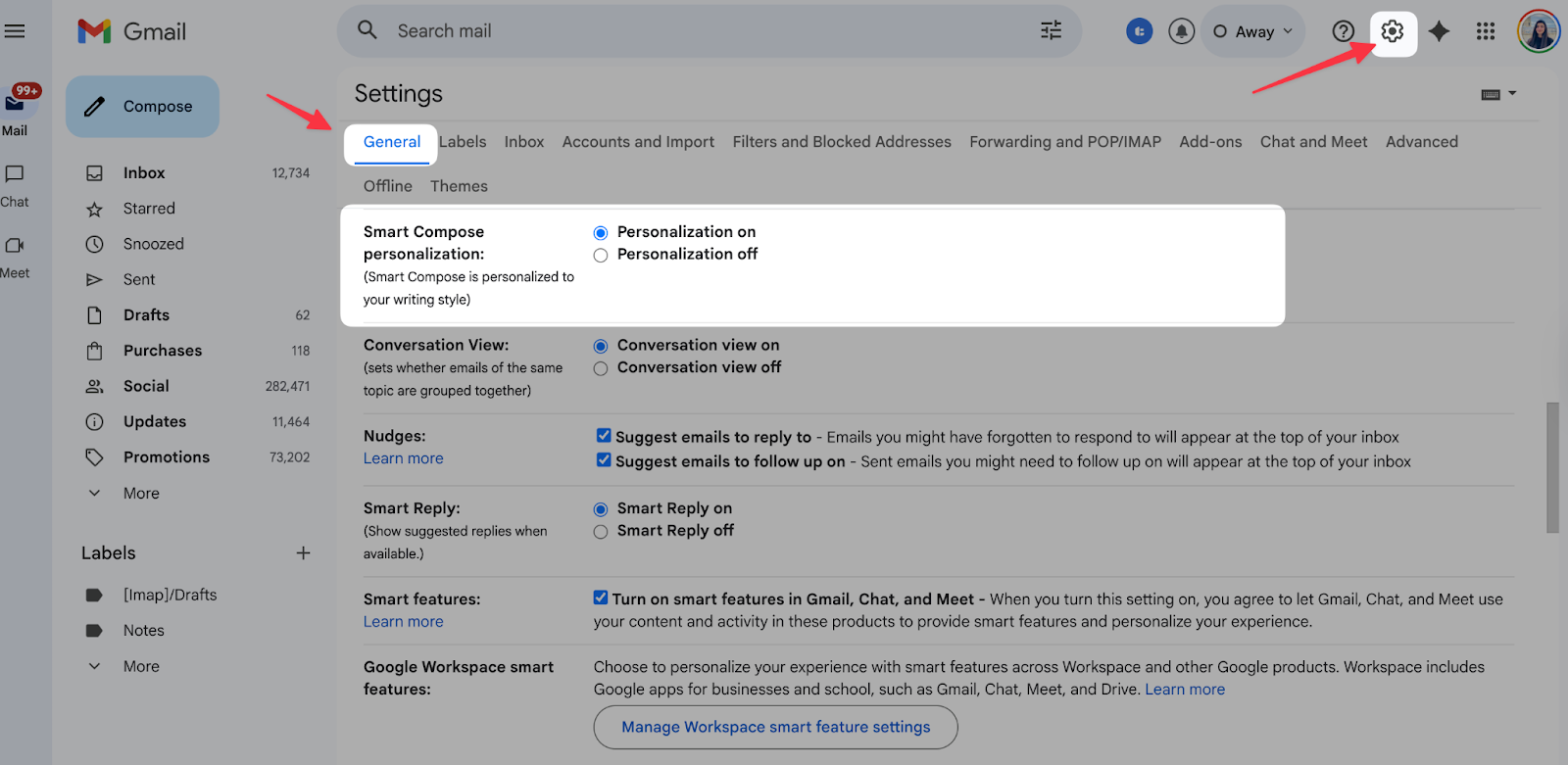
Turning on this setting allows Gemini to read the structure of your emails, understand what the conversation is about, and offer more relevant writing suggestions.
Step 2: Start Writing an Email with Gemini
Once Gemini is active in Gmail, you can use it to draft a completely new email from scratch.
This is especially helpful when you know what you want to say but need help expressing it clearly and professionally.
How to start:
1. Open Gmail and click Compose
2. Click the Gemini / Help me write icon inside the email window
3. Type what you want Gemini to write about
4. Insert the draft into the message
5. Edit the text to make it accurate and personal
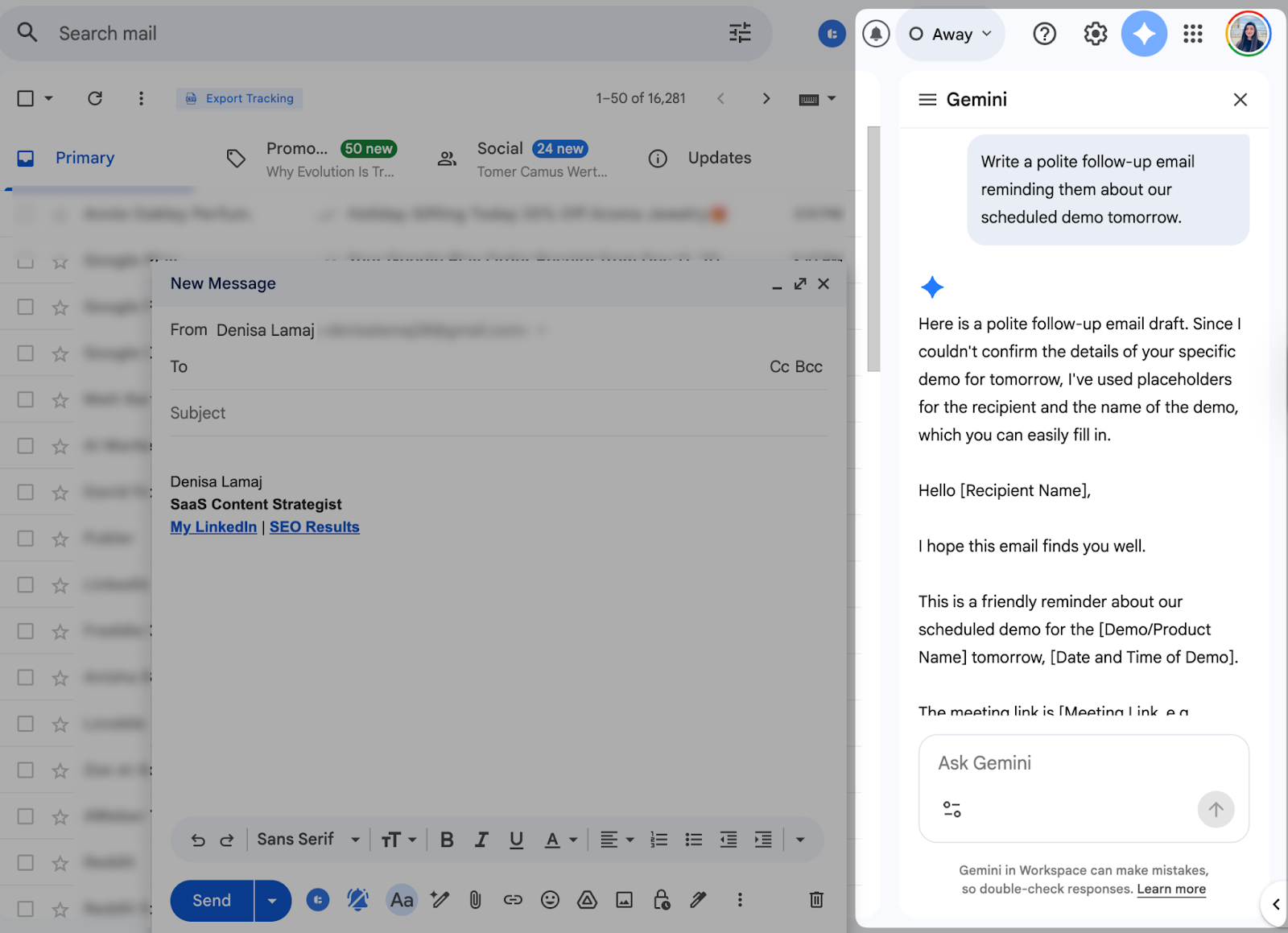
In the example below, Gemini generates a follow-up email based on a simple Gemini prompt. It gives you a complete starting point, and you can adjust the details before sending it.
The example below shows another prompt, this time for an introductory email to a hiring manager. Gemini creates a clean, professional draft that you can personalize with names, dates, or other details.
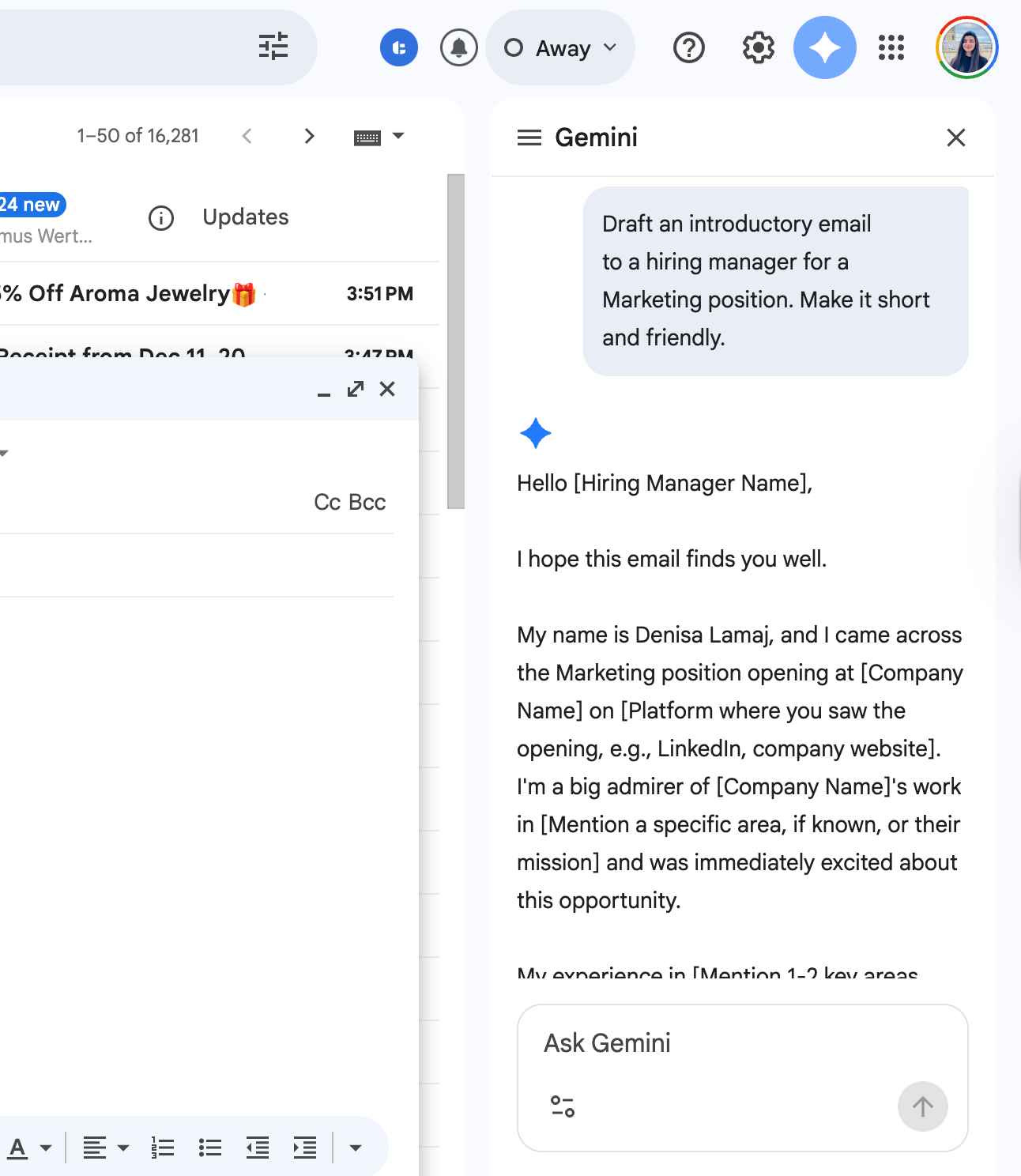
Gemini handles the wording, but you still want to review the draft to make sure it reflects your tone and includes anything specific to your situation.
Step 3: Rewrite & Improve an Email Draft with Gemini
If you already have a draft but want it to sound clearer, shorter, or more professional, Gemini can rewrite it for you. How to use it:
1. Paste or type your rough draft into the email
2. Click Help me write → Rewrite
3. Review the improved version
4. Pick the version you prefer and personalize details before sending
Below, you can see the Gemini rewrite options such as Polish, Formalize, Elaborate, and Shorten. These options help you adjust the tone and clarity of your message in one click.
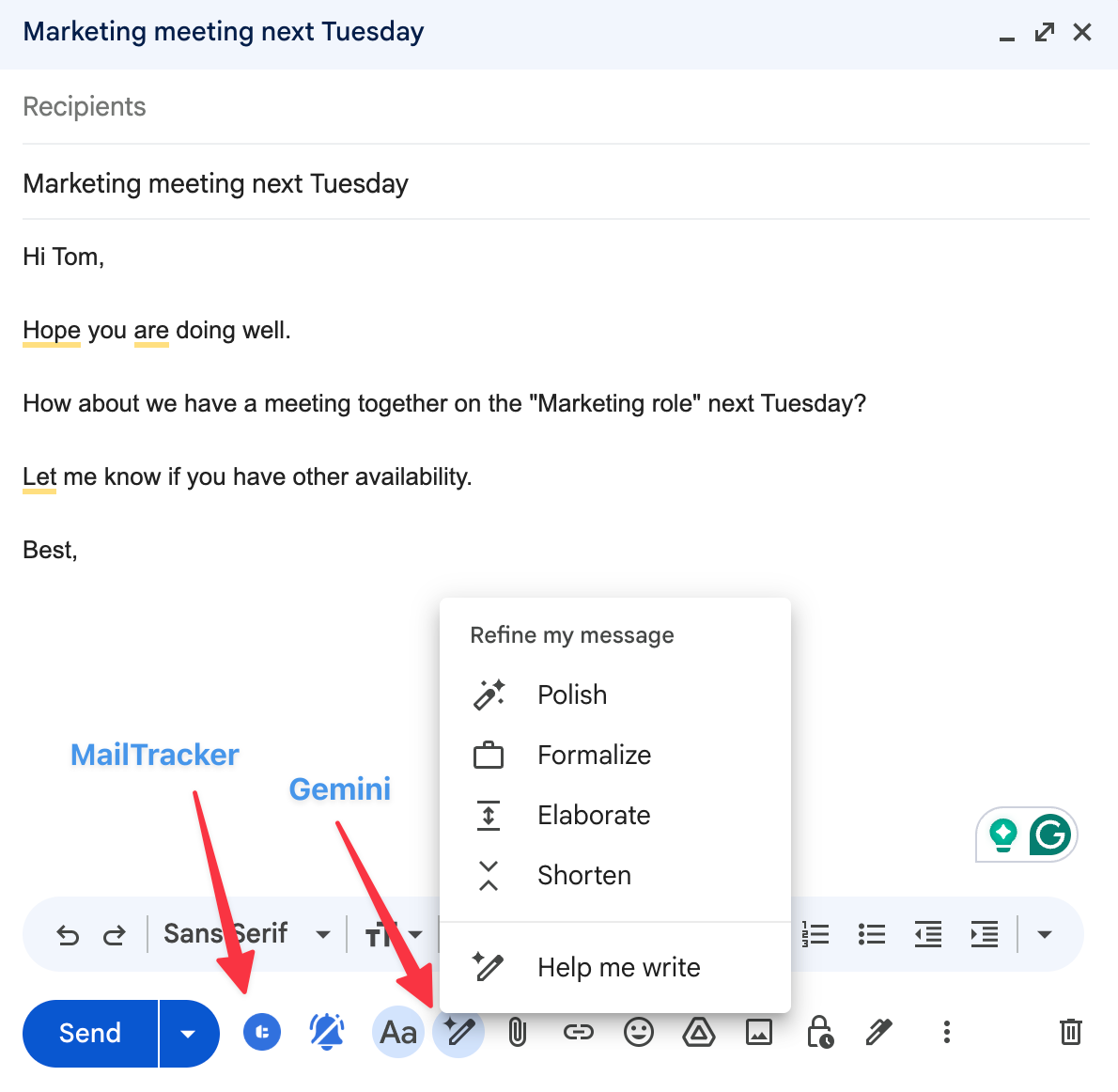
You’ll also notice the MailTracker icon right next to the Gemini tools. If you don’t have it installed yet, this is the moment to add it, because once you finish rewriting your email with Gemini and send it, MailTracker tells you exactly who opened your email and when.
Knowing who opened your email lets you send smarter, better-timed follow-ups based on real engagement.
Gemini is especially useful when you feel stuck trying to rewrite sentences or improve clarity. You can ask it to adjust tone, shorten your message, or make your writing sound friendlier.
Step 4: Summarize Long Email Threads
Long updates, internal discussions, and multi-person threads can take a lot of time to read. Gemini helps by summarizing the key points for you, so you don’t have to go through every line.
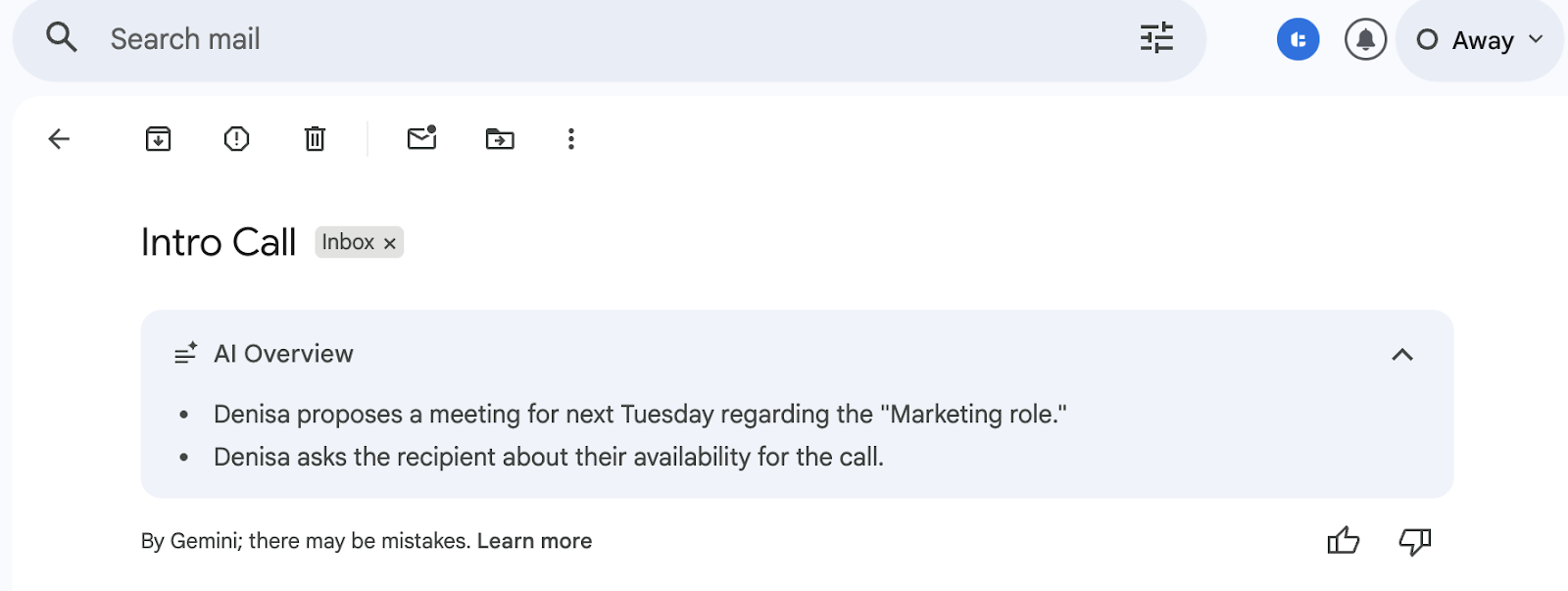
Even if the email itself isn’t long, the summary still shows you the most important actions or decisions at a glance, especially useful when you’re checking messages quickly or reviewing updates on the go.
How to use it:
1. Open the email thread
2. Click Summarize (or open Gemini and ask for a summary)
3. Read the bullet-point overview
4. Reply based on the key information
In the screenshot above, Gemini pulls the main points from a short email thread. For longer conversations, this feature becomes even more valuable.
You can instantly understand what happened, what’s needed, and whether you need to take action.
This is especially helpful when you receive long client updates or back-and-forth messages with coworkers. Gemini gives you a quick, clear summary so you can respond confidently and save time.
Step 5: Reply Faster with Gemini
Gemini can generate full replies based on the message you received.
Instead of typing your entire reply from scratch, it gives you a clean starting point that you can customize in seconds.
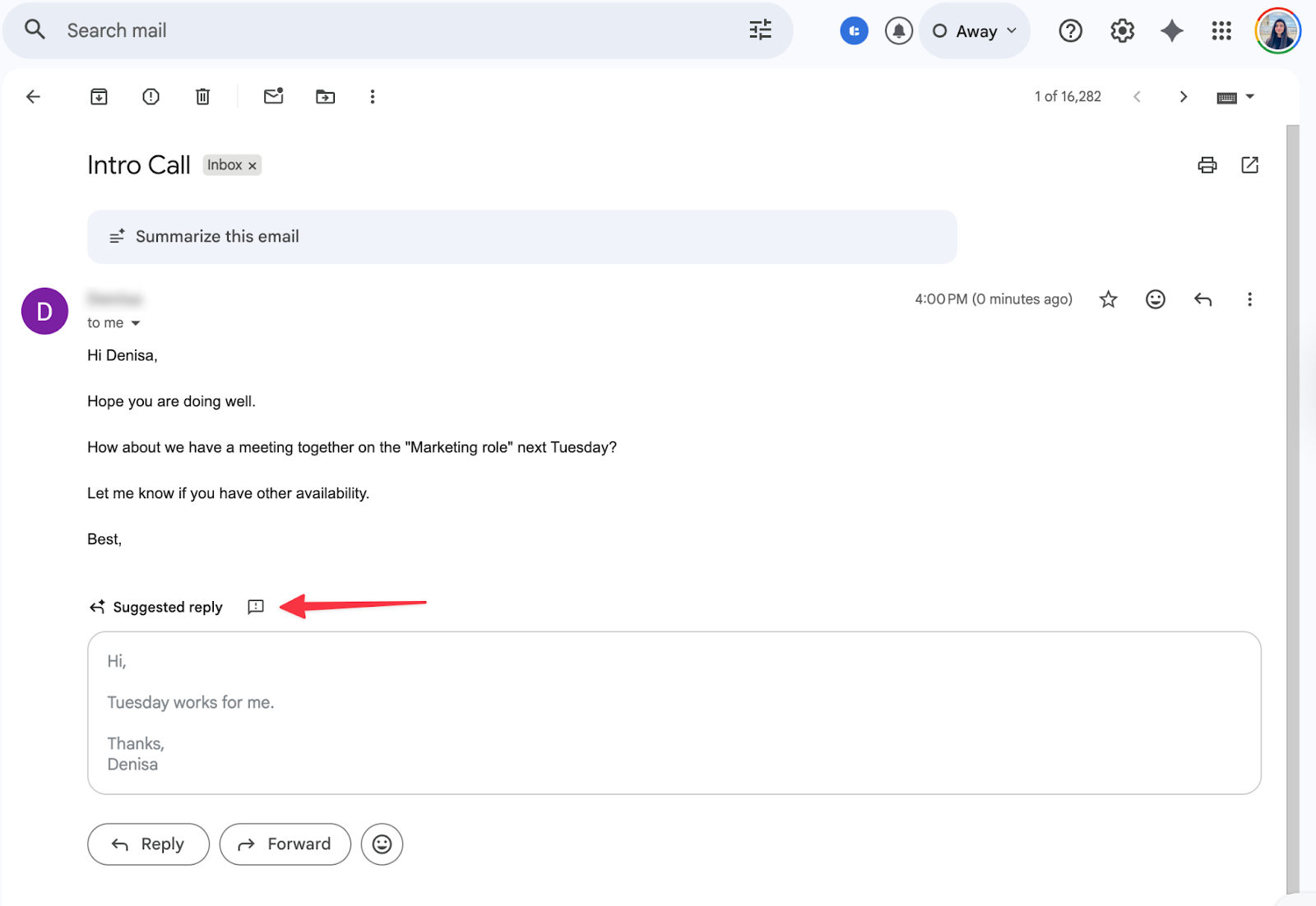
How to use it:
1. Open the email you want to reply to
2. Click Help me reply (or open Gemini and ask for a response)
3. Insert the suggested reply into your message
4. Edit names, details, or anything specific before sending
In the example above, Gemini suggests a short, clear reply that you can insert with one click.
This is useful for common situations like confirming availability, acknowledging a message, or answering simple questions.
You can also adjust the tone (friendly, formal, or concise) depending on what the situation requires.
Step 6: Write Follow-Ups Based on MailTracker Opens
This is where Gemini becomes even more powerful when paired with MailTracker. Gemini helps you write your emails faster, and MailTracker gives you the context you need.
Showing who opened your email, when, and how many times. Together, they help you send smarter, better-timed follow-ups.
Below, MailTracker shows that the email was opened almost instantly. This type of insight tells you the recipient is active and likely saw your message, making it a great moment to follow up.
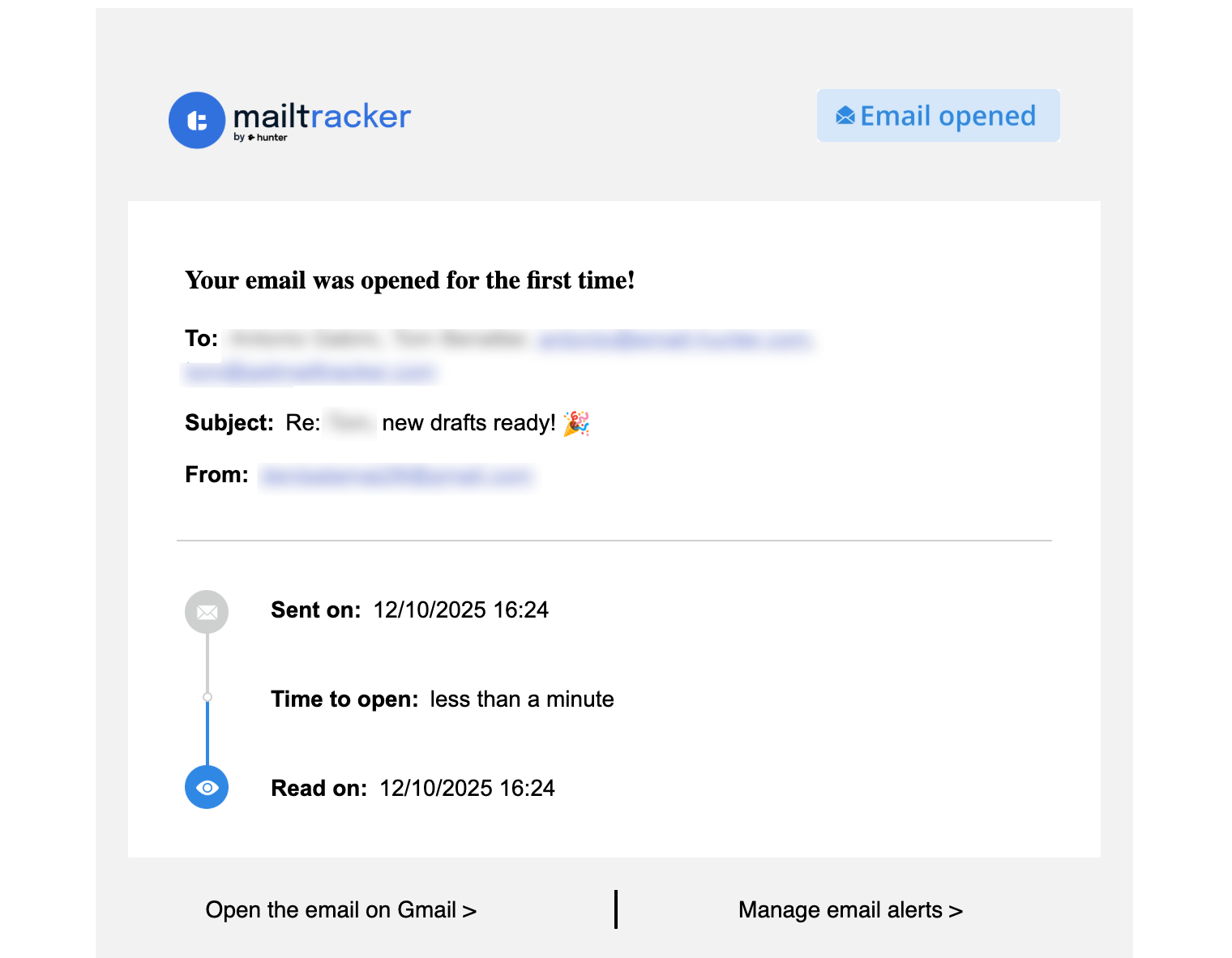
Gemini + MailTracker Workflow:
1. Use Gemini to write your email
2. Track opens with MailTracker
3. If someone opens your email multiple times → ask Gemini to draft a follow-up
4. Personalize the message and send it at the right time
MailTracker gives you the data. Gemini gives you the words. You get higher reply rates because you’re following up with people who already showed interest.
Use Gemini + MailTracker for Better Email Results
Gemini helps you write clearer emails faster. MailTracker shows you who opened those emails and who is most likely to respond.
When you use both together, you communicate more effectively and follow up at the right moment.
With this combination, you can expect:
- Higher open rate (read our case study here for a 93% open rate)
- Better reply rate
- Smarter timing for follow-ups
- Higher engagement
- A faster, more organized email workflow
It’s a simple setup that fits naturally into your daily Gmail use.
FAQs about Gemini in Gmail
Is Gemini free to use in Gmail?
Gemini isn’t free. It works with certain Google Workspace plans or a paid Gemini subscription. Availability depends on your region.
Do I need approval to use Gemini?
If you’re using a Google Workspace account, your admin may need to enable it. If you’re using personal Gmail, you can enable it yourself when the plan is available in your location.
Does Gemini replace MailTracker?
No. Gemini writes emails faster, but MailTracker shows who opened your messages and who you should follow up with. They work best together.
Will Gemini write emails that sound robotic?
Not necessarily. If you review the draft and personalize it, your message will sound natural and professional.

