


Post-interview thank-you emails can influence hiring decisions, but writing the right message isn’t always easy.
Gemini in Gmail helps you write, refine, and personalize thank-you emails directly inside your inbox (without overthinking tone or wording).
In this guide, you’ll see different ways to use Gemini for post-interview thank-you emails, from drafting a message from scratch to quickly refining or replying using Gmail’s built-in suggestions.
You’ll also learn how MailTracker helps you understand when recruiters open your email, so you know when to send a follow-up.
For a real example, read our case study on how a marketer used MailTracker to land 5 job interviews 3× faster.
1. Write a Post-Interview Thank-You Email Using Gemini in Gmail
To begin your post-interview thank-you email, open Gmail and click the Gemini icon in the top-right corner. This opens Gemini’s side panel, where you can start writing directly inside your inbox.
Quick note: Gemini is available with Google Workspace plans and paid Gemini plans for personal Gmail. If you don’t see the Gemini icon, it usually means it’s not enabled for your account yet.
Once the Gemini panel is open, describe your interview in a short, clear prompt.
For example, you can mention:
- The role you interviewed for
- The company name
- The interview type (Zoom, in-person, panel, etc.)
- The interviewer’s name (if you know it)
In the example below, Gemini is asked to write a thank-you email after interviewing for a Marketing Associate role at HubSpot.
Based on that prompt, Gemini generates a full draft that’s already structured, professional, and ready to edit.
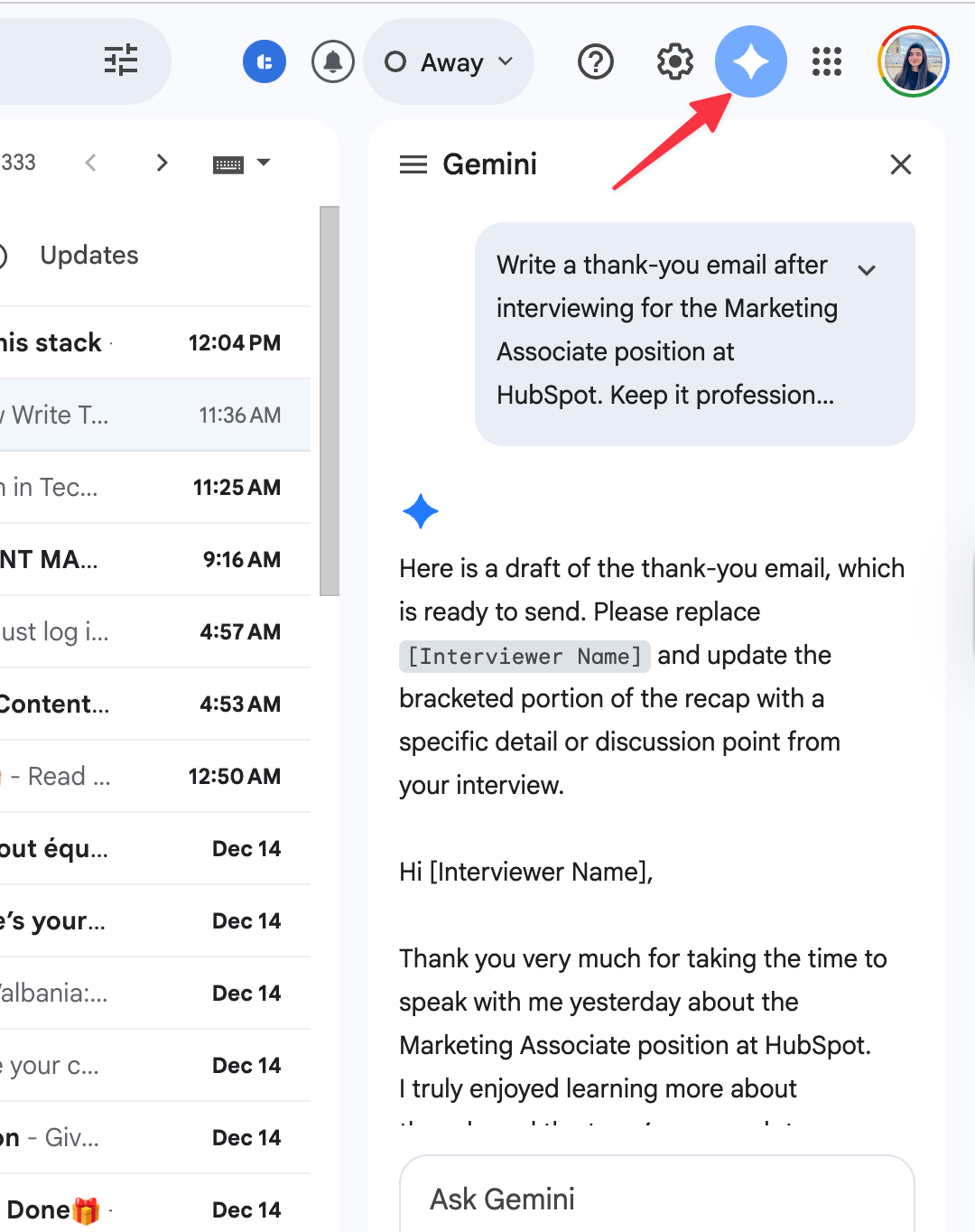
The key advantage here is that Gemini works like a normal AI chat, but you can copy or insert the draft directly into Gmail, saving time and keeping everything in one place.
From here, you’ll refine and personalize the message so it sounds natural, which we’ll do in the next step.
2. Personalize Your Thank-You Email with Interview Details
Once Gemini generates the first draft, the next step is to personalize your email.
AI-written thank-you emails are usually polite but generic.
To stand out, you should add details from your interview that show you were paying attention and that you’re genuinely interested in the role.
This is where you can reference:
- A topic you discussed during the interview
- A skill or responsibility mentioned in the job description
- Something specific about the company, team, or role
By adding these details, your thank-you email sounds human, thoughtful, and tailored (not copied or automated).
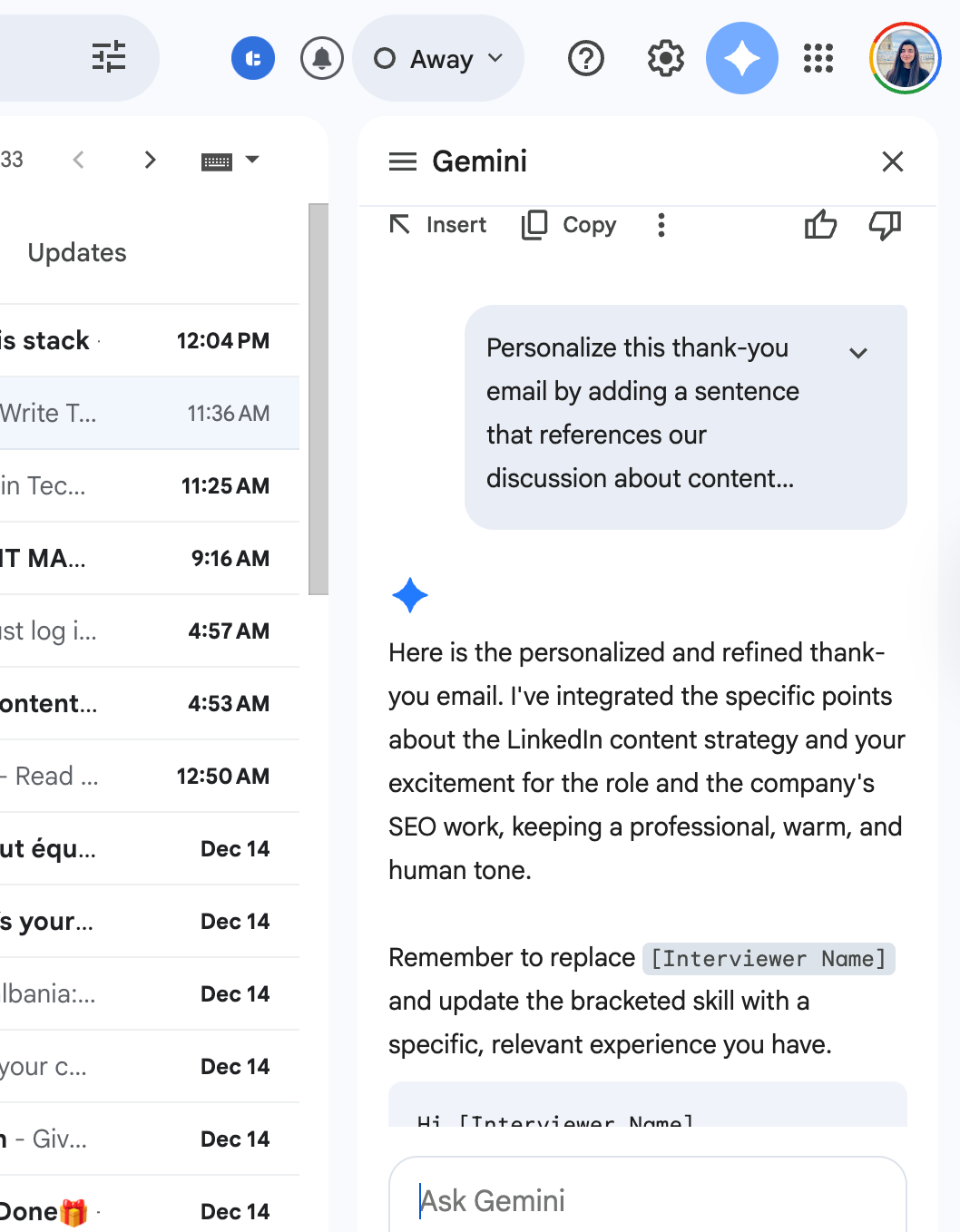
Gemini makes this easy by revising the draft based on your instructions, while keeping the tone professional and natural.
3. Use Gemini’s Suggested Replies for a Fast Thank-You Response
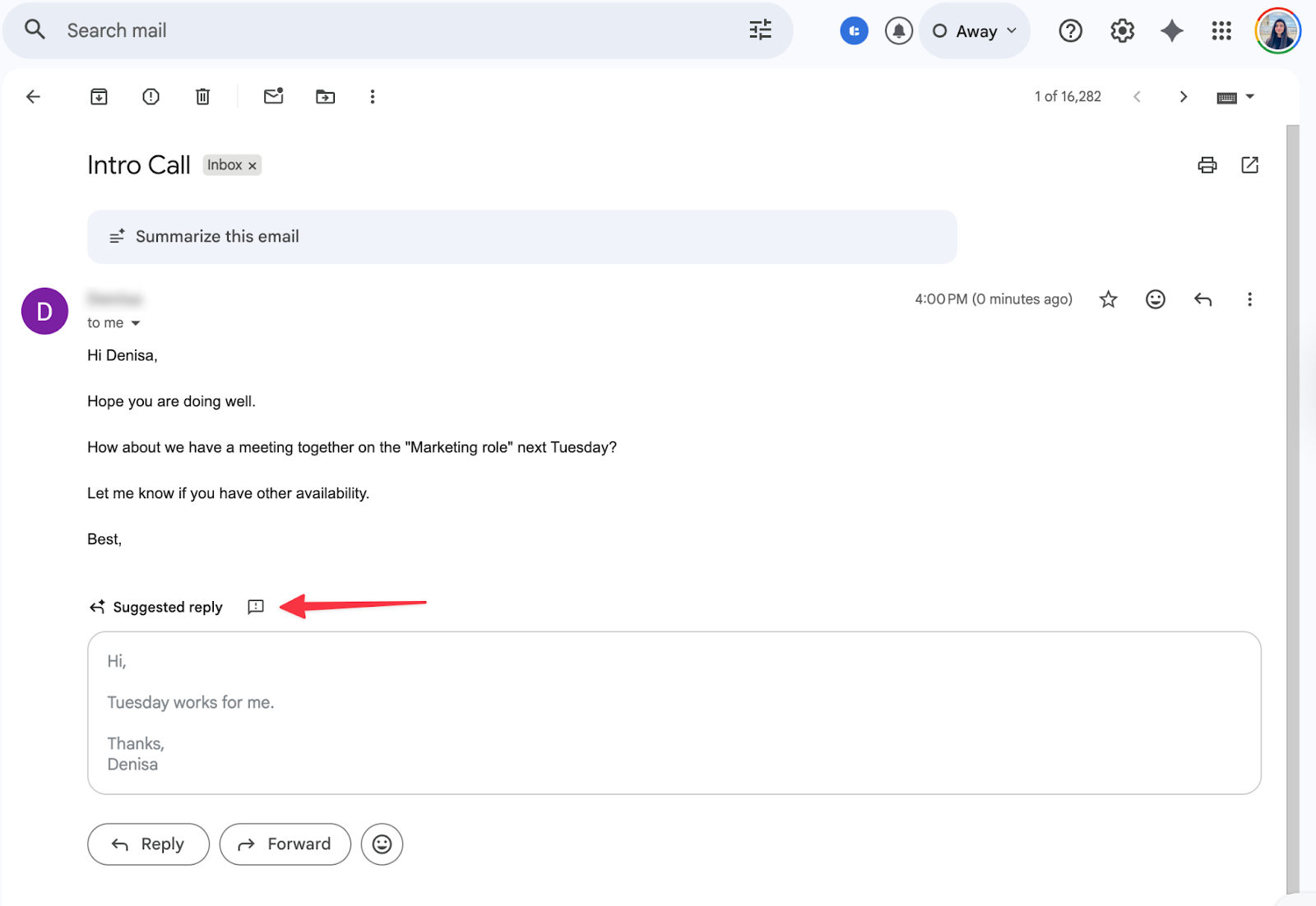
Another way Gemini helps is through Suggested replies, which appear directly inside the email thread.
When you open an interview email, Gmail may show a suggested reply at the bottom of the message, like in the image below. Gemini generates this reply automatically based on the content of the email you received.
In this example, Gemini suggests a short confirmation response for the meeting. If the wording matches what you want to say, you can send it immediately.
This is the quickest way to reply and works well for simple, polite messages where you don’t need extra personalization.
If the suggested reply feels too basic or doesn’t fully reflect your tone, you still have full control:
- You can edit the suggested reply directly before sending, or
- You can switch to Gemini email prompts to generate a more detailed or personalized thank-you email
Think of suggested replies as the fastest option when you want to respond quickly, and Gemini prompts as the better choice when you want to add context, enthusiasm, or personal details from the interview.
4. Refine Your Thank-You Email with Gemini (No Prompt Needed)
If you’ve already written your thank-you email (or pasted a draft from Gemini), you don’t need to type another prompt to improve it. Gmail gives you built-in Gemini options directly inside the compose window.
As shown in the example, when you’re composing a new email, you’ll see Gemini’s Refine my message options at the bottom of the editor. These let you adjust your draft with one click.
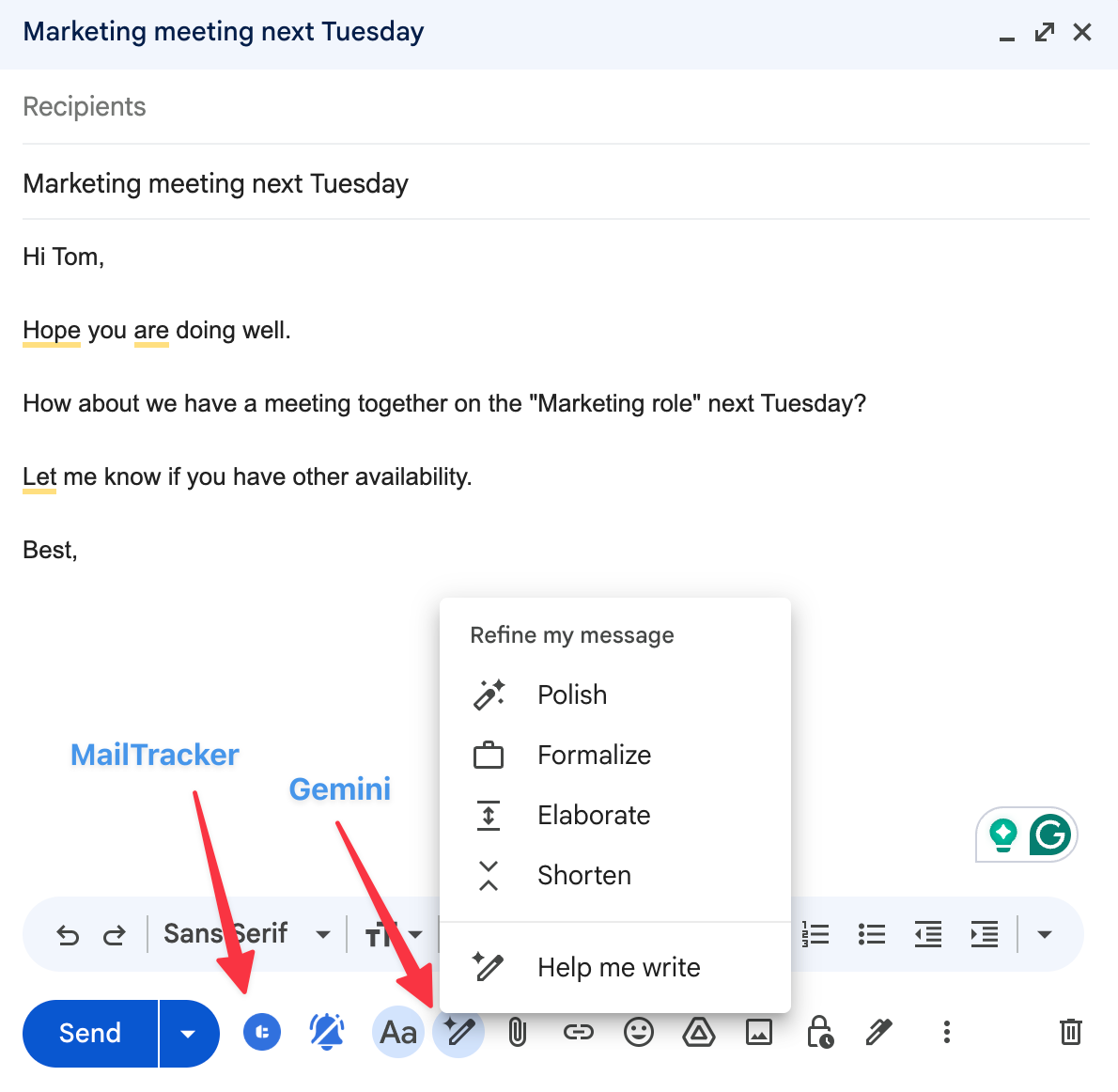
You can use Gemini to:
- Polish the email to sound smoother and more professional
- Formalize the tone for more corporate or traditional companies
- Elaborate if your message feels too short or lacks context
- Shorten the email if it feels too long or repetitive
This is useful when your thank-you email already has the right content, but you want it to sound clearer, more confident, or better aligned with the company’s tone (without rewriting everything).
To get even more value from your thank-you email, you can also add MailTracker to Gmail. It’s a free tool that appears right next to the Send button, just like shown in the image.
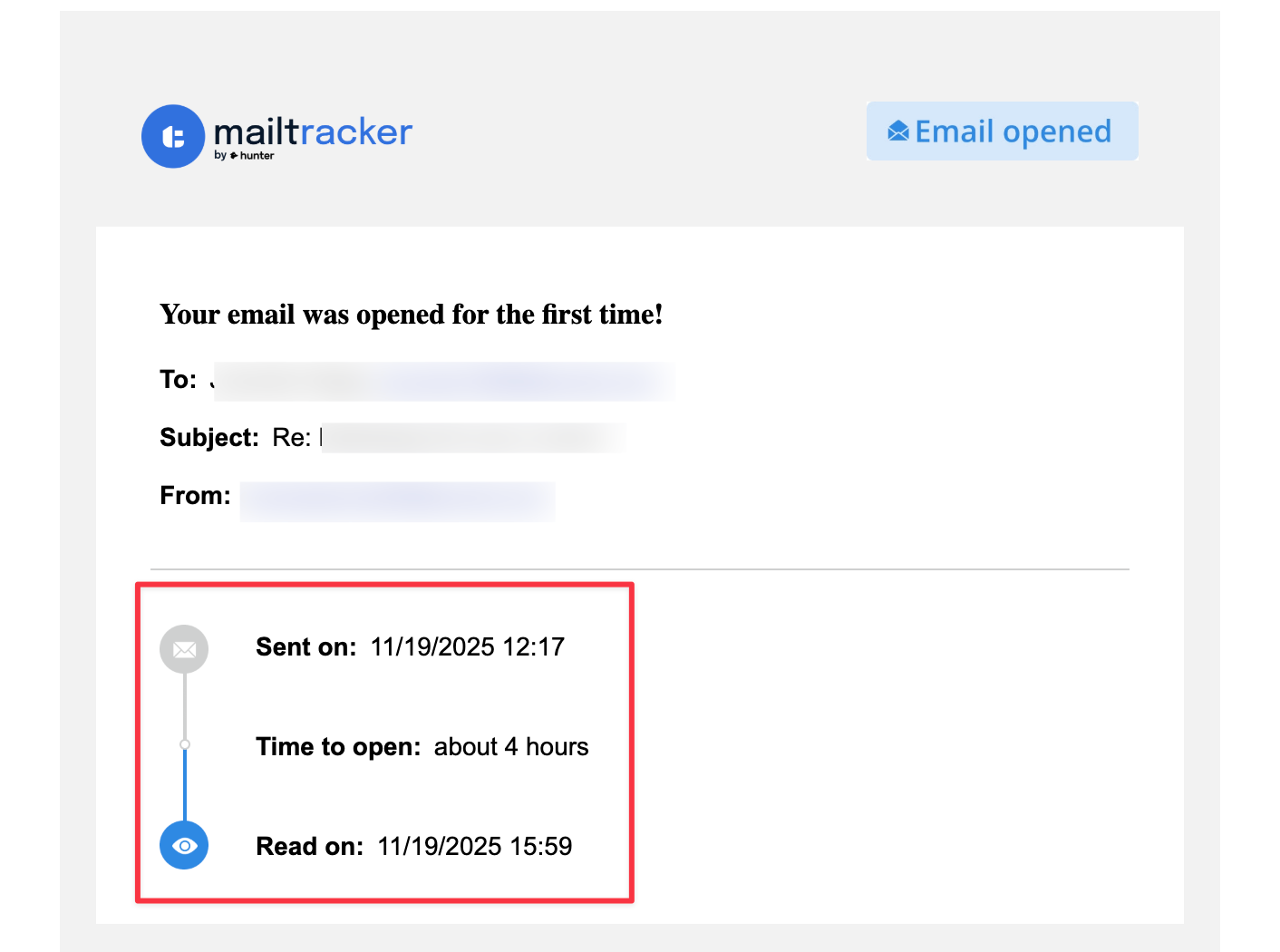
Once your email is sent, MailTracker lets you see if and when the recruiter opened your thank-you email.
Use Gemini in Gmail + MailTracker to Send Smarter Post-Interview Emails
Gemini helps you write a clear, professional thank-you email by drafting, rewriting, and adjusting tone so your message sounds confident and human, not generic.
MailTracker shows you whether the recruiter opened your email and when, so you know if and when a follow-up makes sense.
Together, they help you send better post-interview emails at the right time, so you follow up with confidence.

