


Sending an important email and hearing nothing back can be frustrating.
Did they open it? Did it land in spam? Should you follow up or wait?
Email tracking tools help answer these questions by showing when an email is opened, how many times it was viewed, and whether links inside the message were clicked.
I tested several Gmail email tracking tools by installing their Chrome extensions, connecting them to Gmail, and sending real emails to see how tracking notifications and reporting actually work.
I’ll walk through the best email tracking tools for Gmail based on real testing, Chrome Web Store ratings, free plan limits.
TL;DR
How Email Tracking Works
Email tracking works by adding a tracking pixel, inside an email.
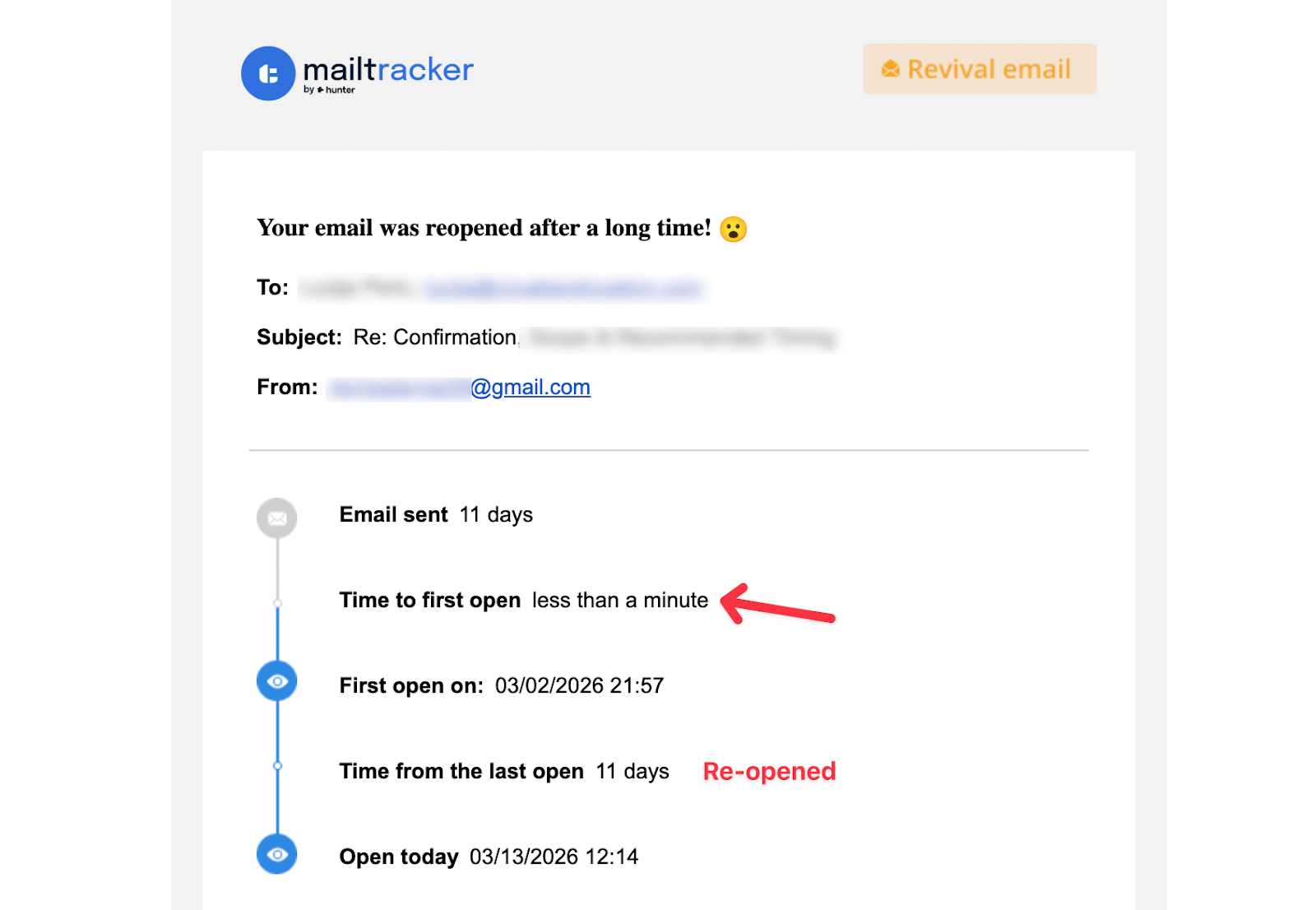
Here’s what email tracking looks like in practice when a tracking tool detects that an email has been opened.
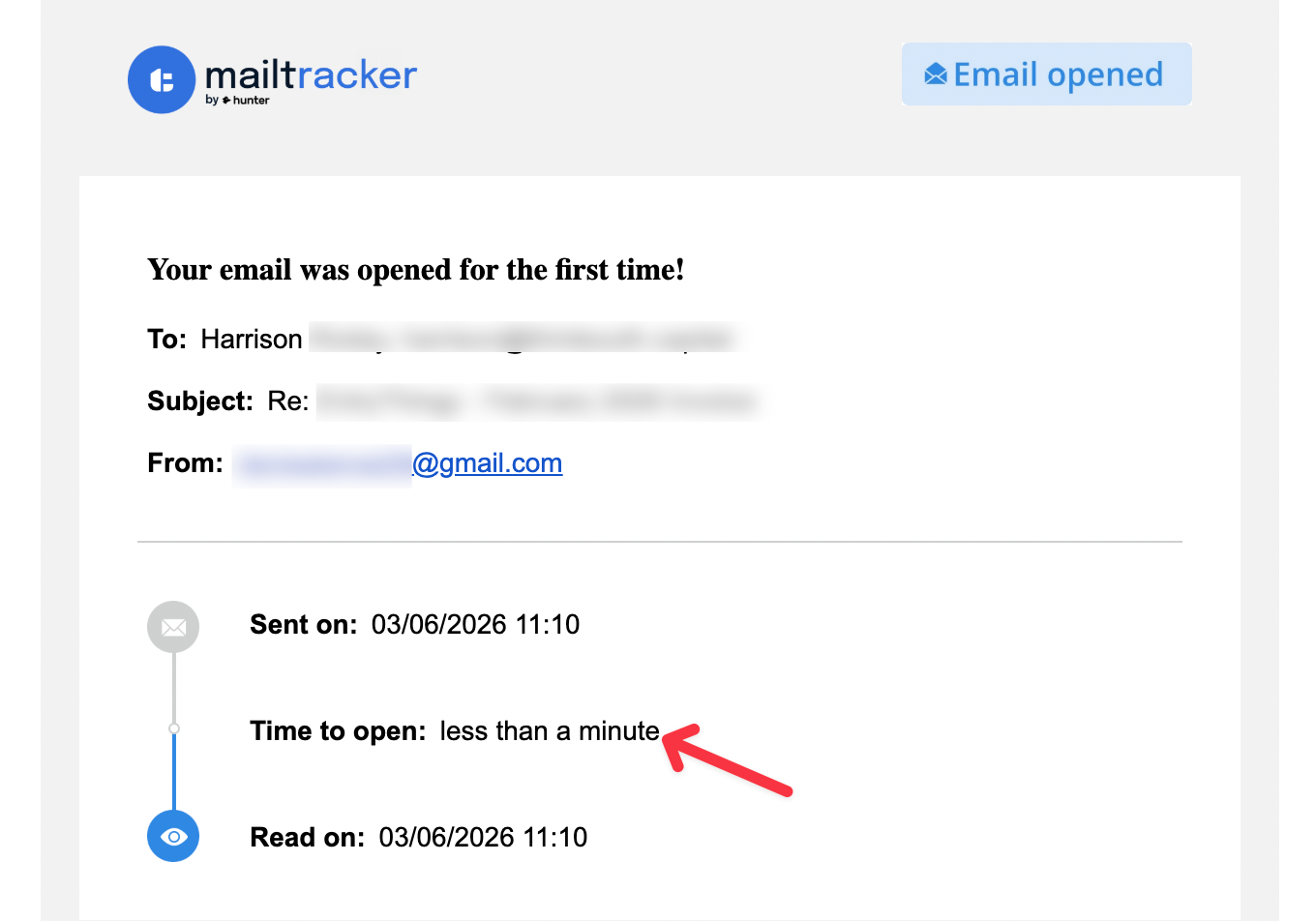
When the recipient opens the email, their email client loads that image from a server. This action sends a signal back to the tracking tool, confirming that the message was opened.
Most email tracking tools record several pieces of information when this happens, including:
- the time the email was opened
- how many times it was viewed
- whether links inside the email were clicked
- the approximate location of the recipient
- the device used to open the email
This data helps you understand how recipients interact with your messages so you can decide when to follow up.
However, email tracking is not always perfect.
Some email clients block tracking pixels or preload images automatically. Apple Mail Privacy Protection, for example, can trigger a tracking event even if the recipient hasn’t actually read the email.
Because of this, open notifications should be treated as engagement signals, not definitive proof that someone read your message.
How I Tested These Email Tracking Tools
Before comparing these tools, I installed each extension and tested how it behaves inside a real Gmail workflow.
I connected every tool to Gmail, sent test emails between multiple accounts, and checked how the tracking signals appeared when emails were opened or links were clicked.
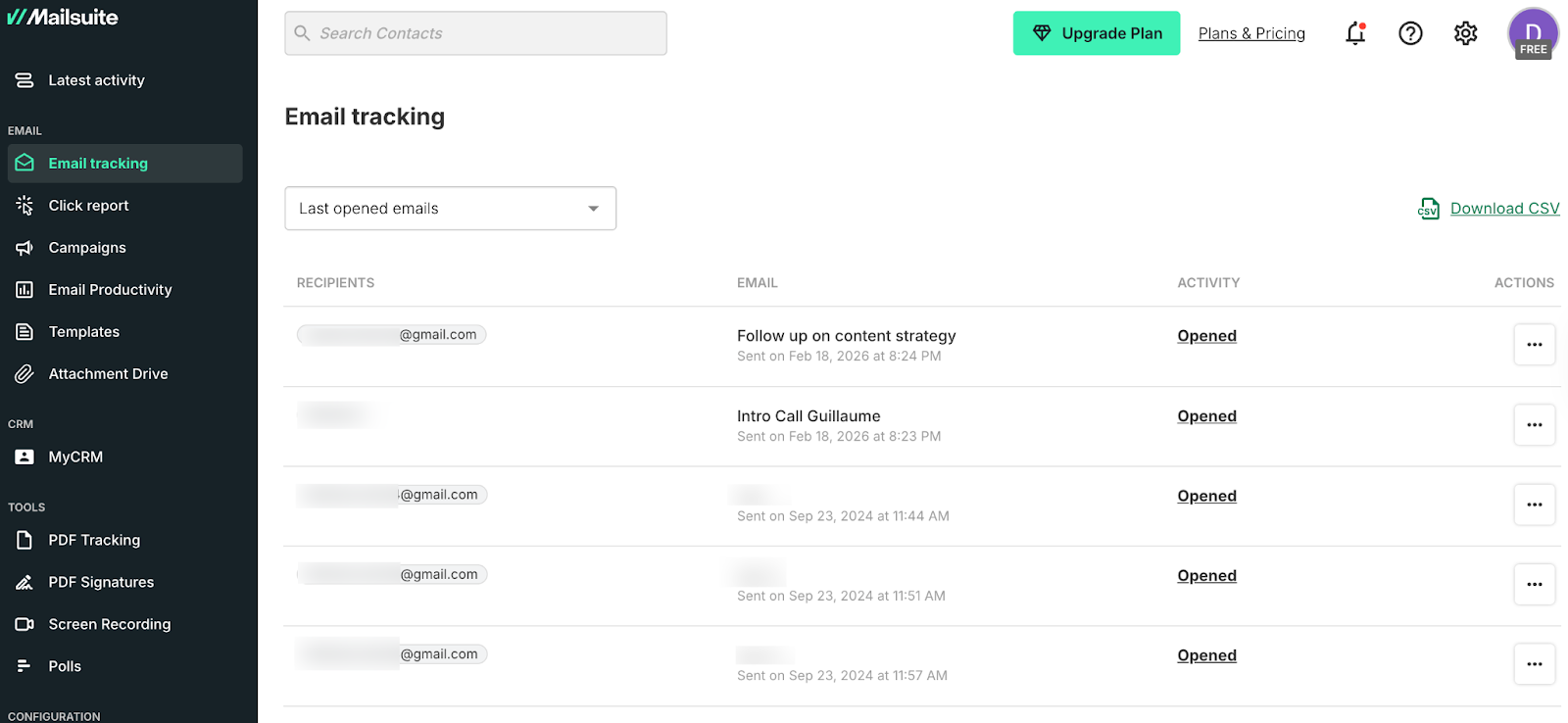
During testing, I focused on a few practical things:
- how quickly open notifications appear
- whether tracking happens automatically or requires manual activation
- where tracking data lives (inside Gmail or in a separate dashboard)
- the limits of the free plan
- overall usability during everyday email use
I also checked Chrome Web Store ratings and G2 reviews to understand how these tools perform for other users.
Best Email Tracking Tools for Gmail
The following tools are the most widely used email tracking extensions for Gmail.
Some tools focus on simple open tracking inside Gmail. Others include scheduling, outreach features, or even full CRM workflows.
The tools below performed best based on ease of use, reliability of tracking signals, and overall usefulness during daily email workflows.
1. MailTracker (Best for clean Gmail tracking)
MailTracker is one of the simplest email tracking tools available for Gmail. The extension installs directly in Chrome and adds tracking to outgoing emails automatically.
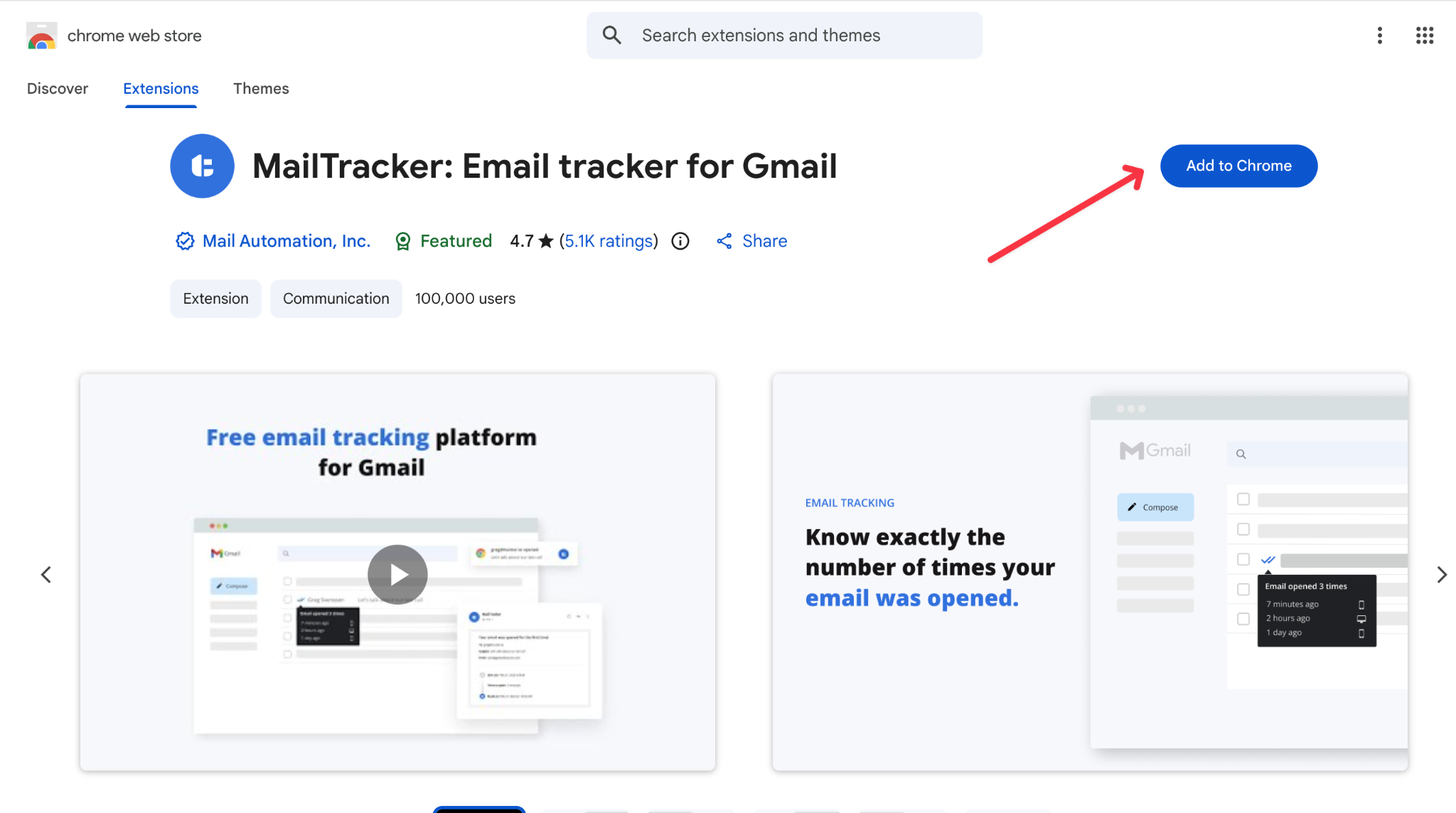
Unlike many tracking tools, MailTracker does not add a visible signature to emails on the free plan. Messages appear exactly the same to recipients, while tracking data remains visible only to the sender.
When an email is opened, MailTracker sends a notification showing when the message was viewed. If the email is reopened later, the extension records that activity as well. These reopen signals can help identify when someone returns to your message before replying.
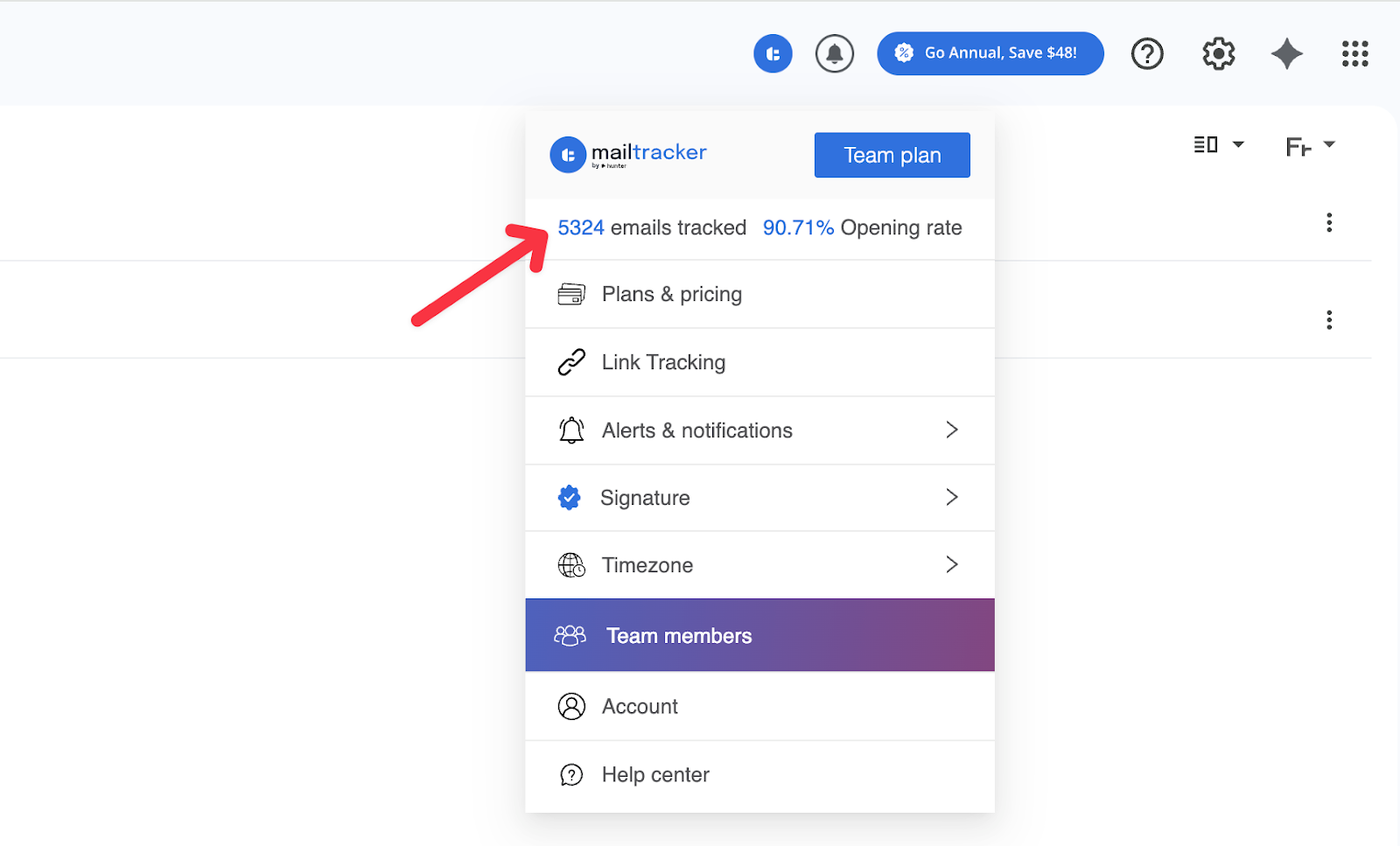
MailTracker works entirely inside Gmail, so you don’t need to open a separate dashboard to see tracking activity. The extension adds small indicators to send emails and displays notifications directly in your inbox.
Key features
- Automatic email open tracking
- Real-time notifications when emails are opened or reopened
- Link click tracking for URLs inside emails
- Follow-up reminders for emails that remain unopened
- Tracking interface built directly into Gmail
Pricing
The free plan includes tracking for 20 emails per month. Paid plans start at $29.99 per month and include unlimited tracking and additional features.
My experience
During testing, MailTracker was one of the easiest tools to use. Tracking activates automatically, so there is no manual step required before sending an email. Notifications also appear quickly when an email is opened, which makes it easier to decide when to send a follow up.
Because the tool lives directly inside Gmail, there is no separate dashboard to manage. Everything appears inside the inbox interface.
Limitation
The free plan limits tracking to 20 emails per month. Users who send a high volume of tracked emails will need the paid plan for unlimited tracking.
2. Snov.io (Best for outreach and email finding)
Snov.io is different from most email tracking tools on this list because tracking is only one part of a larger outreach platform. The tool combines email finding, verification, drip campaigns, and tracking in a single system.
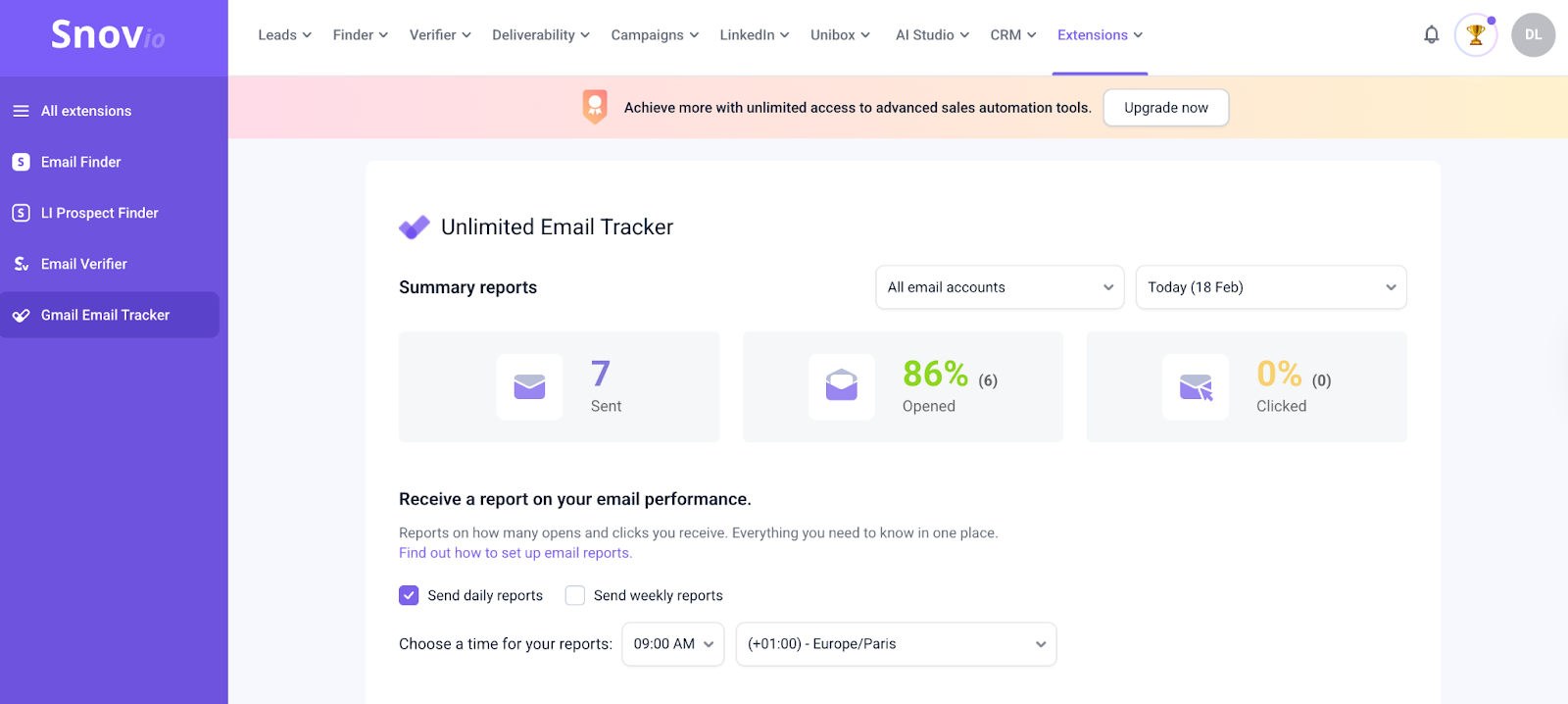
During testing, the tracking itself worked reliably. When emails were opened, Snov recorded the activity inside its dashboard, showing who opened the message, when it happened, and whether links inside the email were clicked.
Unlike tools that show tracking directly inside Gmail, Snov stores most of its tracking data in an external dashboard. That means you often need to switch tabs to review engagement data or see campaign performance.
Snov also includes tools for finding email addresses on websites and LinkedIn, verifying those emails to reduce bounce rates, and sending automated outreach campaigns. This makes it more useful for sales teams or recruiters running cold outreach workflows.
Because the platform combines several tools in one system, the setup process takes longer than simpler tracking extensions. After installing the Chrome extension, you still need to connect accounts and configure tracking settings before sending your first tracked email.
Key features
- Email open and click tracking
- Email finder for discovering addresses on websites and LinkedIn
- Email verification to reduce bounce rates
- Drip campaigns with automated follow-ups
- Central dashboard for outreach and engagement data
Pricing
The free plan includes 50 credits per month, which are shared across email finding, verification, and tracking features. Paid plans start at $39 per month for larger outreach campaigns and higher credit limits.
My experience
Snov worked well when testing small outreach campaigns. The tracking data was accurate and the dashboard clearly showed which recipients opened emails and interacted with links.
However, because the platform includes many features beyond tracking, the interface can feel complex if your only goal is to know when someone opened an email.
Limitation
The 50 free credits are shared across several features. If you use the email finder or verifier frequently, those credits can disappear quickly, which means you may need a paid plan sooner than expected.
3. Mailmeteor (Best for Gmail mail merge campaigns)
Mailmeteor focuses on a slightly different use case than most tools on this list. Instead of only tracking individual emails, it is designed for sending personalized campaigns directly from Gmail using mail merge.
During testing, Mailmeteor integrated smoothly with Gmail and Google Sheets. You can import a list of contacts, personalize emails using variables like name or company, and send multiple emails at once without leaving your inbox.
The tool also includes email tracking, allowing you to see whether recipients opened your emails or clicked links inside them.
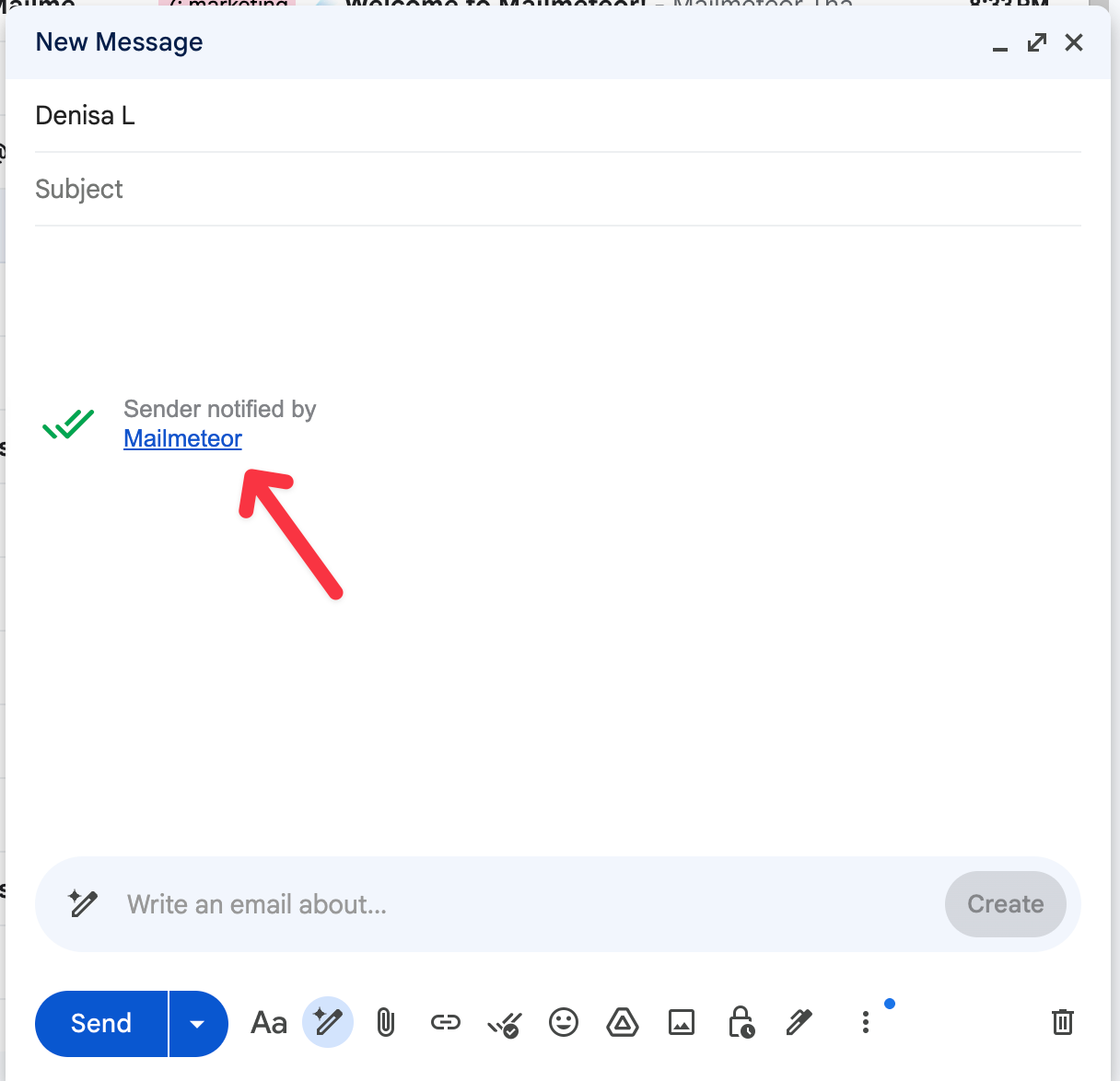
Here’s how Mailmeteor appears inside Gmail when preparing a mail merge campaign.
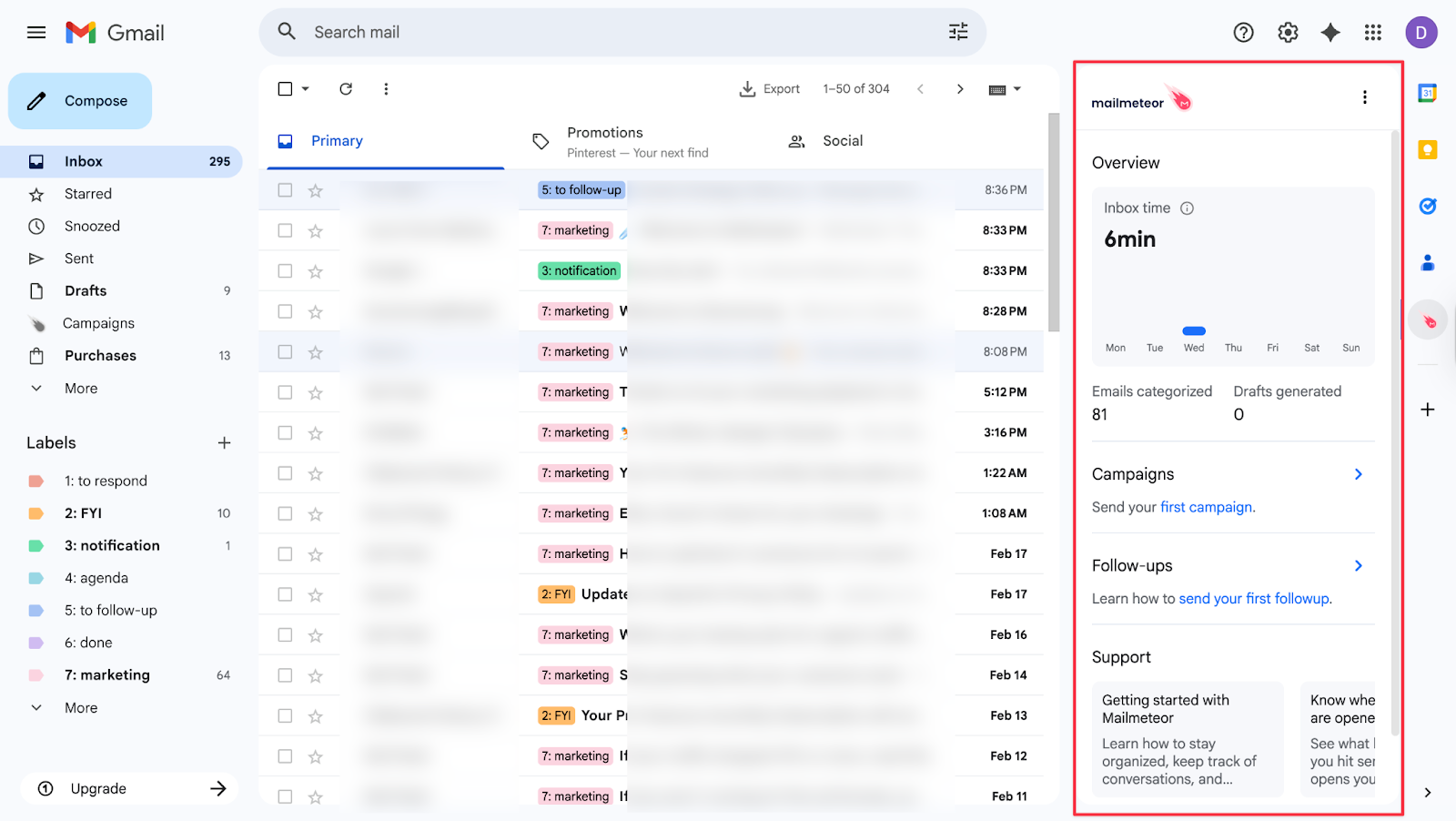
One thing that stands out immediately is the sidebar panel that appears inside Gmail. The panel provides access to campaign features, templates, and tracking data. While this makes the tool easy to access, the sidebar stays visible in Gmail and cannot be collapsed, which may feel distracting for users who prefer a minimal inbox layout.
The free plan allows users to send up to 50 emails per day, which makes Mailmeteor useful for small outreach campaigns or personalized newsletters.
However, the free plan adds a small signature to outgoing emails. The signature can be removed manually before sending, but you need to remember to do it each time.
Key features
- Mail merge campaigns directly from Gmail
- Integration with Google Sheets contact lists
- Email open and click tracking
- Automated follow-up emails
- Campaign analytics and tracking insights
Pricing
The free plan allows up to 50 emails per day. Paid plans start at $4.99 per month and remove the signature while unlocking additional campaign features.
My experience
Mailmeteor worked well when testing small personalized outreach campaigns. The Google Sheets integration makes it easy to manage contact lists and personalize emails at scale without using a separate email marketing platform.
For freelancers or small teams sending dozens of emails rather than hundreds or thousands, the workflow is simple and effective.
Limitation
The sidebar inside Gmail cannot be collapsed, which may feel intrusive for some users. The free plan also includes a signature that must be removed manually if you want emails to appear completely clean.
4. RightInbox (Best for email scheduling with basic tracking)
RightInbox is primarily designed as an email productivity tool for Gmail. The extension focuses on scheduling emails, setting follow-up reminders, and managing outreach workflows directly inside your inbox.
Email tracking is included as an additional feature rather than the core focus of the tool. During testing, RightInbox successfully tracked when emails were opened and when links inside messages were clicked.
However, tracking is not enabled automatically. Before sending an email, you need to manually activate tracking options in the compose window. If you forget to check those boxes, the email will be sent without tracking enabled.
For example, here’s how RightInbox tracking appears in the Gmail compose window before sending an email.
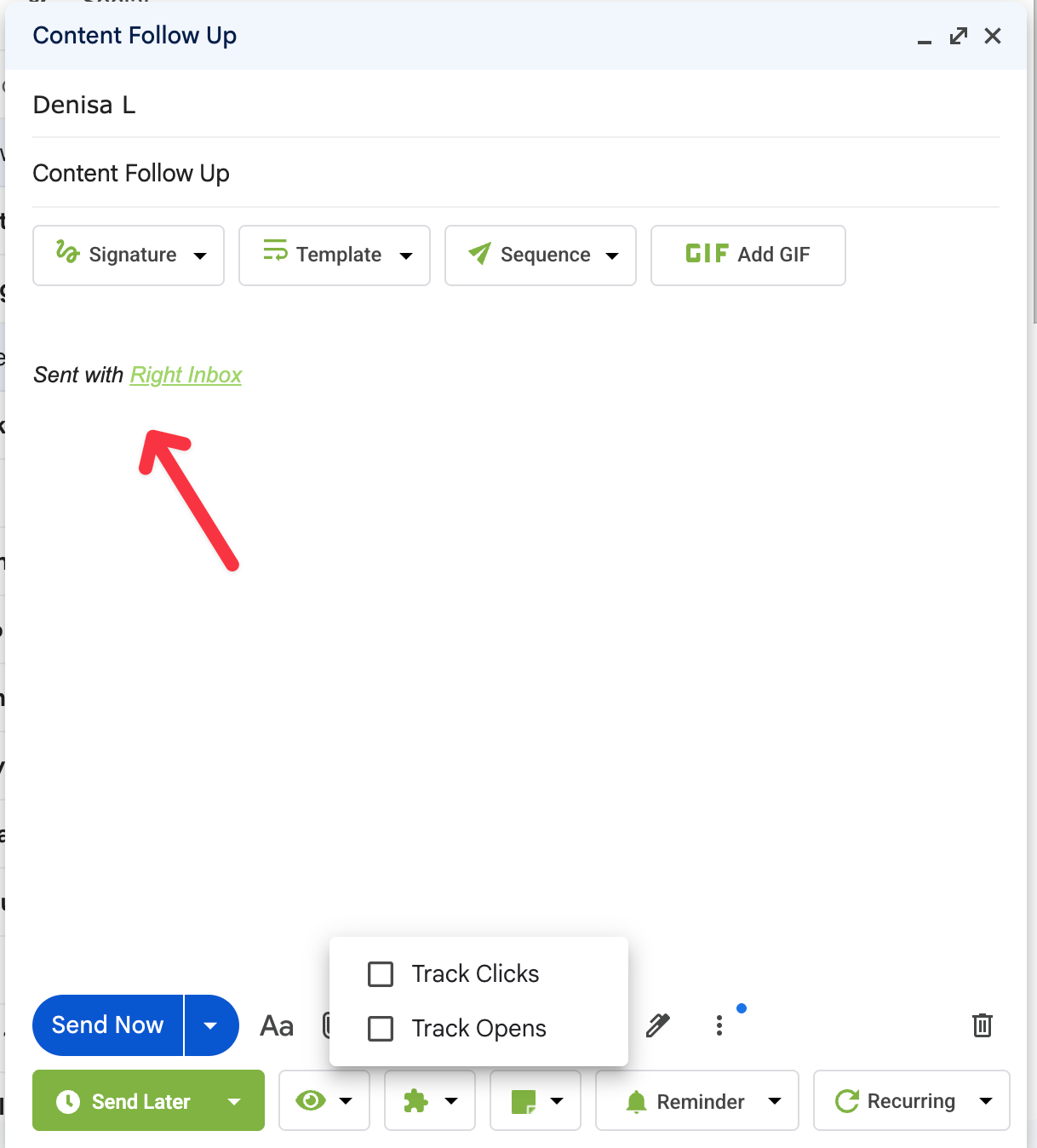
Another detail that appears immediately during testing is the default signature added to emails sent through the free plan. Messages include a “Sent with Right Inbox” line at the bottom. The signature can be removed manually before sending, but this step must be repeated each time.
The free plan allows five tracked emails per month, which is one of the smallest tracking limits among tools in this comparison.
Where RightInbox performs best is scheduling. The extension makes it easy to write emails in advance and send them later, which is useful when communicating across different time zones or planning follow-ups.
Key features
- Email scheduling and “send later” functionality
- Email open and click tracking
- Follow-up reminders for unanswered emails
- Email templates for repeated messages
- Simple outreach sequences based on engagement
Pricing
The free plan includes 5 tracked emails per month. Paid plans start at $9.95 per month and unlock unlimited tracking along with additional scheduling and productivity features.
My experience
RightInbox worked reliably for scheduling emails during testing. Messages sent through the “Send Later” feature arrived at the correct time, which makes the extension useful for managing follow-ups or sending emails during working hours in another time zone.
However, the manual steps required to activate tracking add friction compared to tools where tracking is enabled automatically.
Limitation
Tracking must be activated manually before sending each email, which makes it easy to forget. The free plan also includes a signature and limits tracking to five emails per month.
5. Mailsuite (Best for unlimited email tracking)
Mailsuite is one of the most widely used email tracking extensions for Gmail. The tool focuses on simple open tracking and offers unlimited email tracking on the free plan.
During testing, the extension tracked every email sent without any monthly limits. This makes Mailsuite attractive for users who send a high volume of emails and want to monitor open activity without worrying about hitting a free plan cap.
However, the free version includes a visible signature at the bottom of each email that says “Sent with Mailsuite · Unsubscribe.” The signature appears automatically and must be removed manually before sending if you want your email to look completely clean.
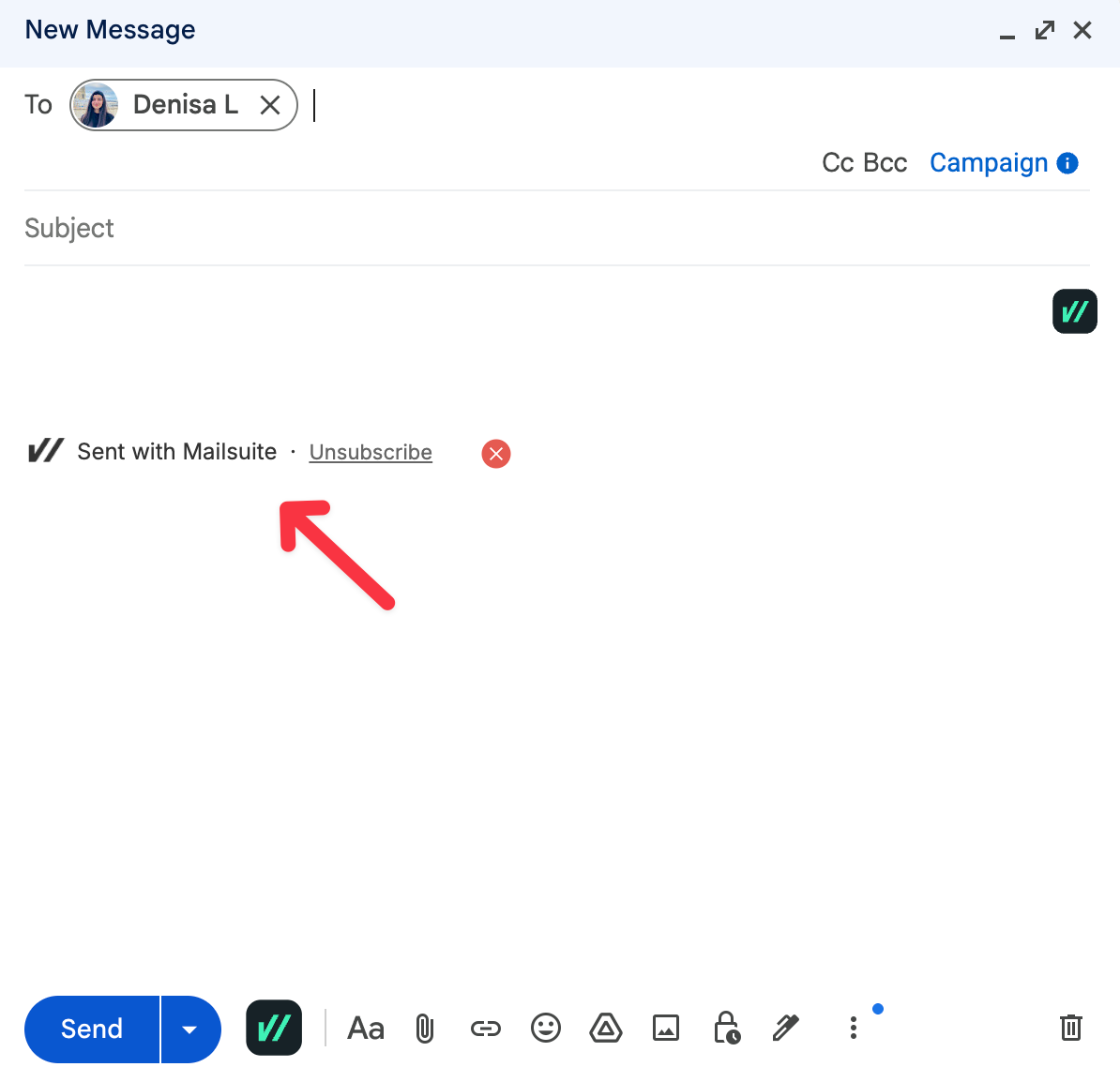
Another difference compared to some Gmail-based tracking tools is that Mailsuite stores most tracking data in an external dashboard. While basic indicators appear inside Gmail, detailed activity such as opens, clicks, and engagement statistics are viewed through the dashboard interface.
The dashboard also includes additional features like campaign tracking, templates, and productivity tools. For some users this expanded feature set is useful, while others may prefer simpler tools that keep everything directly inside Gmail.
If you want a deeper breakdown of how it compares with other trackers, we also published a detailed guide on Mailsuite alternatives that analyzes several competing tools.
Key features
- Unlimited email tracking on the free plan
- Email open and click tracking
- Individual tracking for group emails
- Follow-up reminders for unopened messages
- External dashboard for engagement analytics
Pricing
The free plan includes unlimited tracking but adds the Mailsuite signature to outgoing emails. Paid plans start at €9.99 per month, which removes the signature and unlocks additional features such as scheduled emails and advanced tracking alerts.
My experience
During testing, the unlimited free tracking worked exactly as expected. Emails were tracked reliably and engagement data appeared in the dashboard after messages were opened.
For users who send a large number of emails each month, this unlimited plan is one of the main reasons Mailsuite remains popular.
Limitation
The free plan automatically adds a visible signature to every email. Users who want completely clean emails need to either remove the signature manually before each send or upgrade to the paid plan.
6. Boomerang (Best for email scheduling with light tracking)
Boomerang is widely known as an email scheduling tool for Gmail and Outlook. While it includes email tracking, the main focus of the extension is helping users schedule messages, set reminders, and manage follow-ups directly inside their inbox.
During testing, Boomerang tracked email opens successfully, but tracking is not enabled automatically. Before sending an email, you must manually click the “Track” button inside the Gmail compose window. If that step is skipped, the email will be sent without tracking.
This extra step makes Boomerang slightly different from tools that automatically track every email.
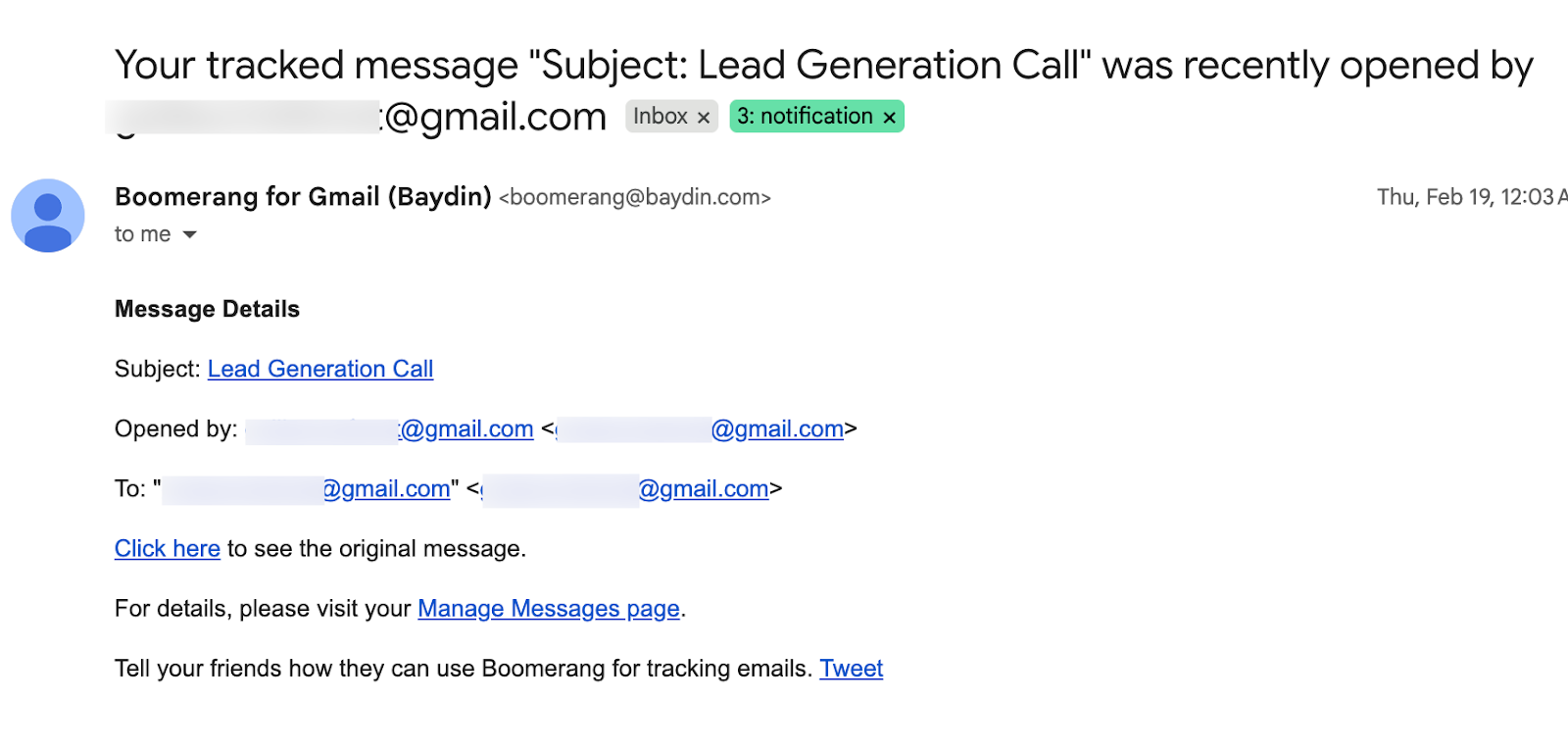
Once tracking is enabled, Boomerang sends notifications when an email is opened. These notifications usually arrive as emails in your inbox showing that a tracked message was viewed.
The tool also includes several productivity features that go beyond tracking. Users can schedule emails to be sent later, receive reminders if a message does not receive a reply, and access an AI writing assistant that helps improve the tone of emails before sending.
Boomerang is also one of the few tools in this comparison that works on both Gmail and Outlook, which can be useful for users switching between email platforms.
Key features
- Email open tracking with notifications
- Email scheduling and “send later” functionality
- Follow-up reminders for unanswered emails
- AI assistant for improving email tone and clarity
- Works with both Gmail and Outlook
Pricing
The free plan includes 10 tracked emails per month. Paid plans start at $4.98 per month, making Boomerang one of the more affordable paid options in this comparison.
My experience
Boomerang worked reliably for scheduling emails during testing. Messages scheduled with the “Send Later” feature were delivered at the correct time, which makes the extension useful for sending emails across time zones.
However, because tracking requires manual activation, it is easy to forget to enable it before sending an email.
Limitation
Tracking must be enabled manually before sending each email. If the “Track” option is not selected, the email will be sent without tracking data.
7. Streak (Best for CRM workflows inside Gmail)
Streak is different from most email tracking tools because it is built as a CRM that lives directly inside Gmail. Instead of only tracking opens and clicks, the extension is designed to help manage sales pipelines, hiring processes, and customer relationships directly from your inbox.
Email tracking is one feature within this larger system. When tracking is enabled, Streak records when recipients open your emails and when links inside messages are clicked. Notifications can appear as browser alerts or email notifications depending on the settings you choose.
One useful feature during testing was the ability to see detailed open activity, including timestamps and the device used to view the email.
Here’s how Streak displays email tracking activity directly inside Gmail.
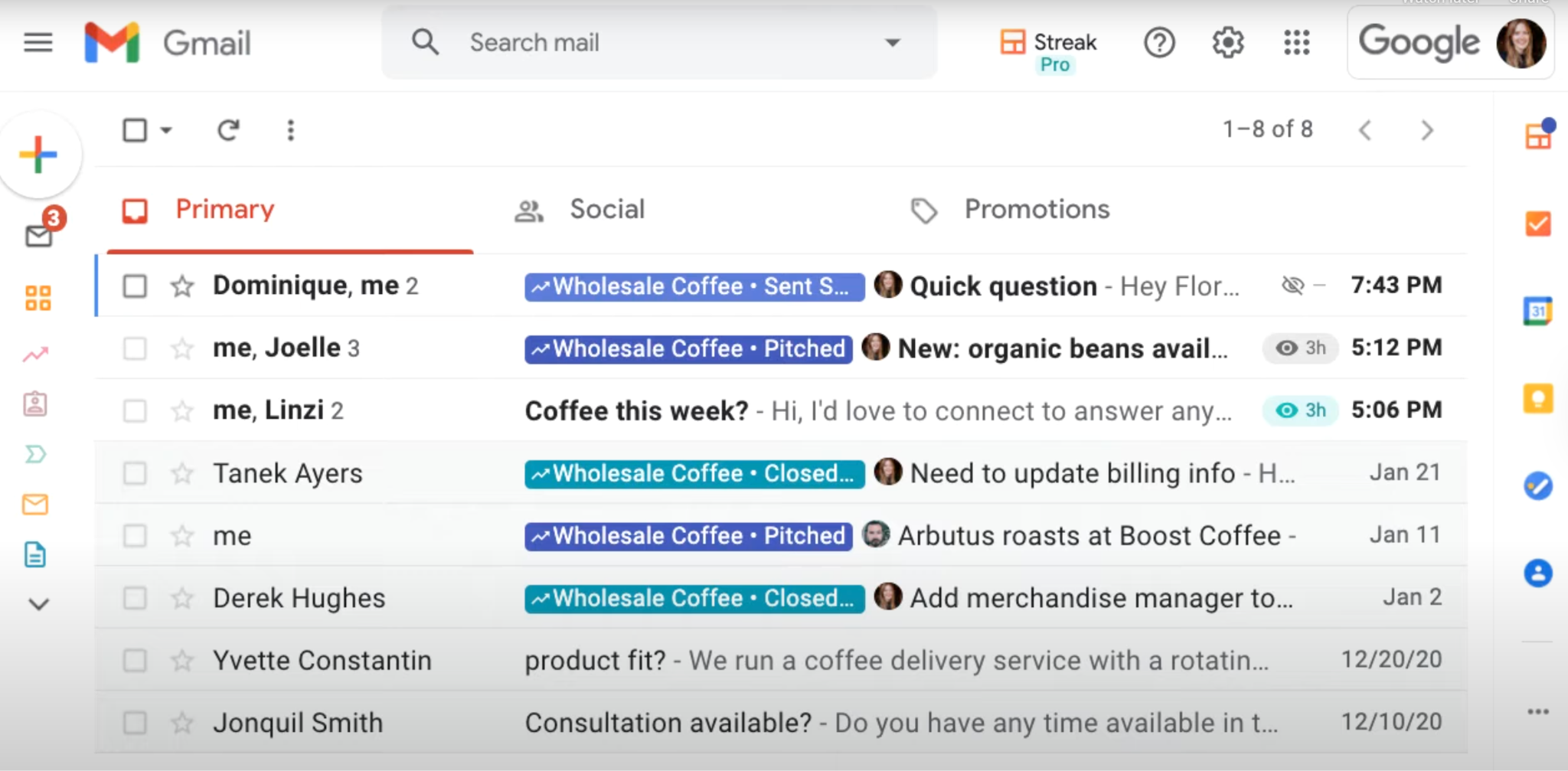
Because Streak is designed as a CRM, tracking data can also be connected to pipelines. This allows users to organize leads, track conversations, and monitor engagement with emails inside a structured workflow.
For example, sales teams can see which prospects opened emails and move those contacts through different stages of a sales pipeline.
Key features
- Email open and link click tracking
- Real-time notifications when emails are opened
- CRM pipelines built directly inside Gmail
- Detailed engagement data including timestamps and device information
- Tools for managing leads, hiring pipelines, or support conversations
Pricing
Streak offers a free plan with basic CRM features and email tracking. Paid plans start at $15 per user per month and unlock advanced CRM functionality and collaboration tools.
My experience
Streak worked reliably for tracking email opens during testing, and the integration with Gmail felt seamless since the entire CRM operates inside the inbox.
For users already managing sales conversations in Gmail, the ability to combine tracking and pipeline management in one tool can be useful.
Limitation
Because Streak is designed as a full CRM, the interface includes many features that go beyond simple email tracking. Users looking for a lightweight tracking tool may find the system more complex than necessary.
8. Mailbutler (Good for cross-platform email tracking and collaboration)
Mailbutler is an email productivity extension that adds tracking, scheduling, and collaboration features to several email platforms. Unlike many tools that only work with Gmail, Mailbutler supports Apple Mail, Gmail, and Outlook, which makes it useful for teams working across different email clients.
Email tracking is one of the core features of the platform. When enabled, Mailbutler records when recipients open emails and click links, and it can send real-time notifications when those interactions happen.
During testing, the tool also provided additional engagement details, such as the device used to open the email and the approximate location of the recipient. These signals can help users understand how recipients interact with messages before deciding when to follow up.
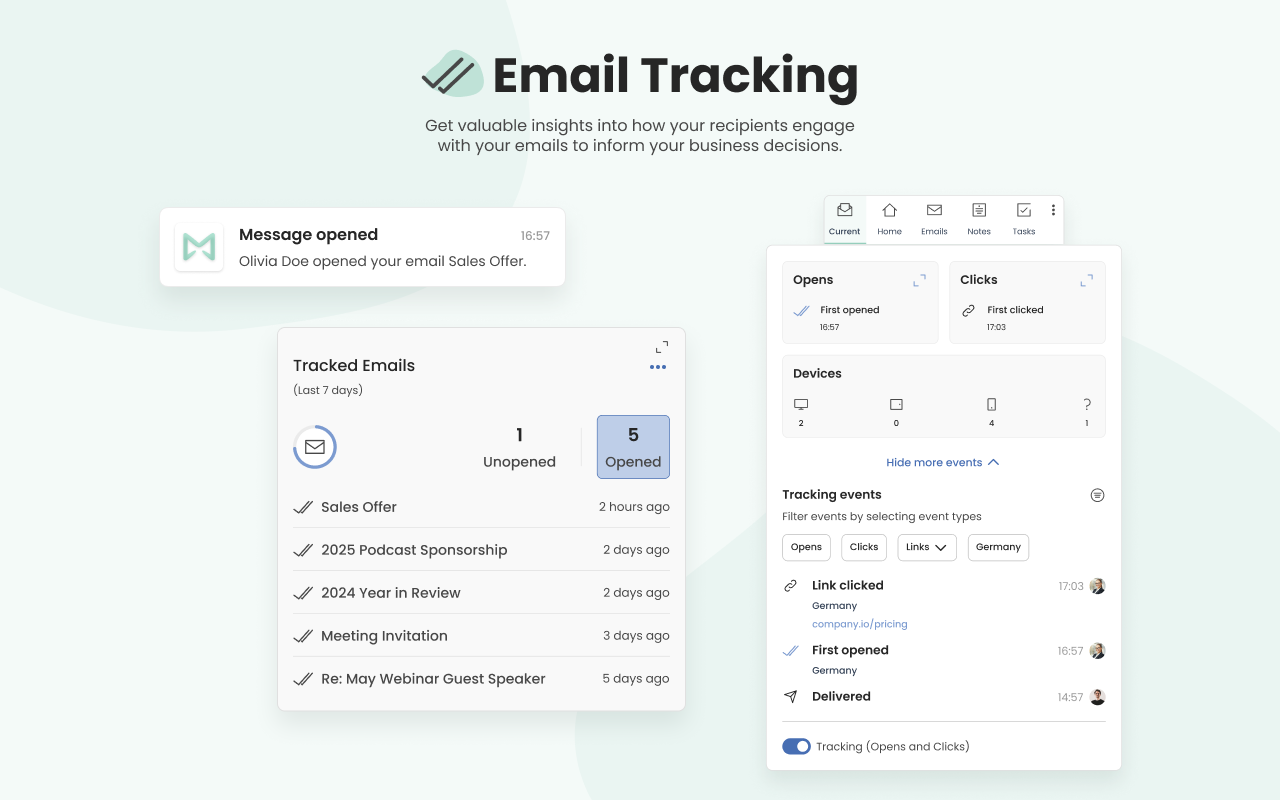
Another feature that stands out is the ability to send tracking data directly to CRM systems such as HubSpot or Salesforce. Teams can connect email engagement with sales or support workflows without manually logging activity.
Mailbutler also includes additional inbox tools such as email scheduling, templates, notes, and collaboration features that allow teams to manage conversations more efficiently.
Key features
- Email open and link click tracking
- Real-time notifications for email engagement
- Device and approximate location tracking
- CRM integrations with HubSpot and Salesforce
- Email scheduling, templates, and collaboration tools
Pricing
Mailbutler offers a free trial for new users. Paid plans start at $4.95 per month, with higher tiers unlocking advanced tracking, collaboration tools, and CRM integrations.
My experience
Mailbutler worked reliably when testing email tracking and engagement notifications. The additional insights such as device information and approximate location provide more context about how recipients interact with emails.
Because the platform includes many productivity features beyond tracking, it can be especially useful for teams that want to combine tracking, scheduling, and collaboration in one extension.
Limitation
Mailbutler includes many features beyond email tracking, which can make the interface feel heavier than simple tracking extensions designed only for Gmail.
How to Choose the Right Email Tracking Tool
Email tracking tools solve different problems. Some focus on simple open tracking inside Gmail, while others include outreach, scheduling, or CRM features.
The best tool depends on how you send emails.
If you want simple Gmail tracking
Use a lightweight tool that automatically tracks emails. MailTracker is designed for this workflow and notifies you when an email is opened or reopened.
If you run cold outreach
You may need email discovery and automated campaigns in addition to tracking. Snov.io combines email finding, verification, and tracking in one platform.
If you send personalized bulk emails
Tools like Mailmeteor allow you to send mail merge campaigns directly from Gmail while tracking opens and clicks.
If scheduling emails matters
Some tools focus on productivity features like send-later and follow-up reminders. RightInbox and Boomerang combine scheduling with basic email tracking.
If you want CRM workflows
If you manage leads or hiring pipelines inside Gmail, Streak combines email tracking with CRM-style pipeline management.
If you use multiple email platforms
Most trackers are built for Gmail. Mailbutler also supports Apple Mail and Outlook while providing email engagement data.
FAQs about Email Tracking Tools
How does email tracking work?
Email tracking usually works through a small invisible tracking pixel placed inside an email. When the recipient opens the message and the pixel loads, the tracking tool records the open activity.
Can you track emails in Gmail for free?
Yes. Several Chrome extensions allow users to track emails in Gmail for free, although most free plans include limits on the number of tracked emails or add a signature to outgoing messages.
Is email tracking always accurate?
No. Some email clients block tracking pixels or load images differently, which means an email may appear as “not opened” even if the recipient read it.
Do recipients know if their email is being tracked?
Most email tracking tools are invisible to recipients. However, some free plans add a signature such as “Sent with [tool name]” at the bottom of the email.
What is the best email tracking tool for Gmail?
The best tool depends on your workflow. MailTracker works well for simple tracking, while tools like Snov.io or Streak include outreach and CRM features in addition to email tracking.

